
Managing multiple check-in stations across different rooms and events — especially during busy weekend services — can be a logistical headache. That’s where station templates come in.
Planning Center created templates to help automate and streamline your station setup, ensuring everything is ready when you need it. Applying custom themes to each template keeps your stations consistent and branded, matching each unique ministry.
What Are Templates and Why Should I Use Them?
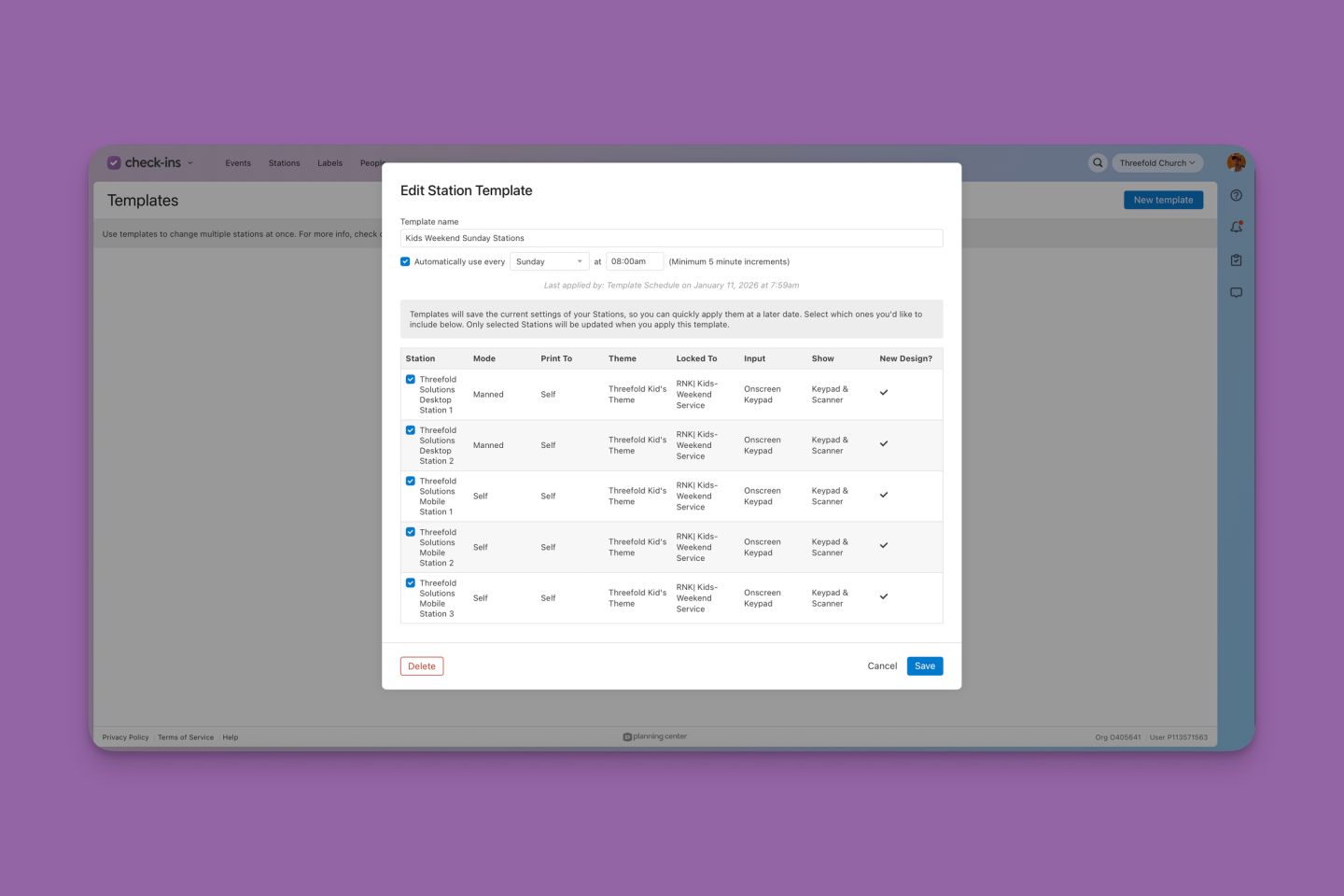
Templates are pre-configured station settings that can be scheduled to activate at specific times. Popular examples include weekend services, midweek class check-ins, and even switching from check-in to check-out. For instance, you can create a “Kids Weekend” template that automatically configures all your children’s ministry stations every Sunday at 8 a.m.
Templates are a game-changer for churches with multiple campuses or numerous stations. You can create different templates for each of your events, such as the Wednesday night youth group and the Saturday membership class. When the time comes, update your settings across all stations in seconds!
How to Set Up a Template
- Prepare your stations. Make sure all check-in stations are turned on and configured exactly how you want them — station type, printer settings, event/locations, and themes.
- Open the template page. Go to the Stations tab and use the settings drop-down to select Templates.
- Create a new template and set configuration. Click New Template in the top right corner, then name as desired (e.g., “Kids Weekend Sunday Stations”). Choose whether to enable automatic activation at a specific date/time or leave it to be activated manually.
- Select stations. Select which stations the template should include and double-check that each station’s settings are correct.
- Save your template: Select Create in the bottom right corner to access and activate your template at any time in the future.
How to Edit an Existing Template
Just like creating a new template, make sure your stations are set to the correct settings before attempting to edit an existing one. Use the station settings drop-down to view templates and select the one you wish to update. Click Save to override the previous settings.
Using Your Template
One of the most efficient ways to use templates is by setting them to activate automatically for your weekly events. You can create templates for:
- Weekend services.
- Sunday evenings.
- Wednesday evenings.
- Any other recurring service times.
Then let Planning Center handle the setup for you! For one-off events, leave the recurring activation box unchecked and manually apply the template when needed.
To apply a template manually:
- Go to the Stations tab.
- Open the settings drop-down and select Templates.
- Locate the desired template and click Use.
Quick Tip: If check-in stations don’t appear to be updated after you apply your template, refresh the station to load the new settings.
Customize the Experience with Themes
In addition to templates, you can personalize the look and feel of your check-in stations using themes. Found in the same drop-down as templates, themes allow you to set background colors or upload custom images to match your ministry’s branding.
- Upload images. For best results, upload a high-quality image with the dimensions of your station screen (iPad, desktop monitor, etc.). Other-sized photos will be centered by default. Planning Center accepts the following file types: JPG, JPEG, PNG, and GIF.
- Choose colors. Instead of an image, you can also select a solid background color that reflects your church’s identity.
- Select light or dark mode. Customize visibility and aesthetics by choosing between light and dark backgrounds.
Put it all together by creating multiple themes for different ministries (kids, adult classes, etc.) and applying them to your templates. Not only will each station have automatically updated events and locations, but it will also have custom images and colors to match.
Conclusion: Save Time and Stress with Templates and Themes
In Planning Center Check-ins, templates and themes are powerful tools that make switching between configurations fast and easy. For churches with multiple services and events throughout the week, these features can save time, reduce stress, and ensure consistency. Say goodbye to last-minute scrambling — and hello to smooth, automated setup!
Kristin Emerson
Client Success Specialist, Threefold Solutions