
Many churches have at least one calendar that doesn’t apply to everyone on the team. Maybe you’re a multi-campus church and don't need every location's events cluttering everyone's view. Maybe your church also runs a school, and school events need to stay separate from the church calendar. Or maybe you just want to keep each ministry's calendar separate, instead of everything blending into one long list.
Until now, anyone with access to Planning Center Calendar could see every single event, even if you were using Multiple Calendars to organize and separate the events. This led to team members seeing a busy, cluttered calendar that they had to manually adjust to remove the events that didn’t apply to them.
Calendar is rolling out access controls at the calendar level, so you can decide exactly who sees what.
What's New in Calendar
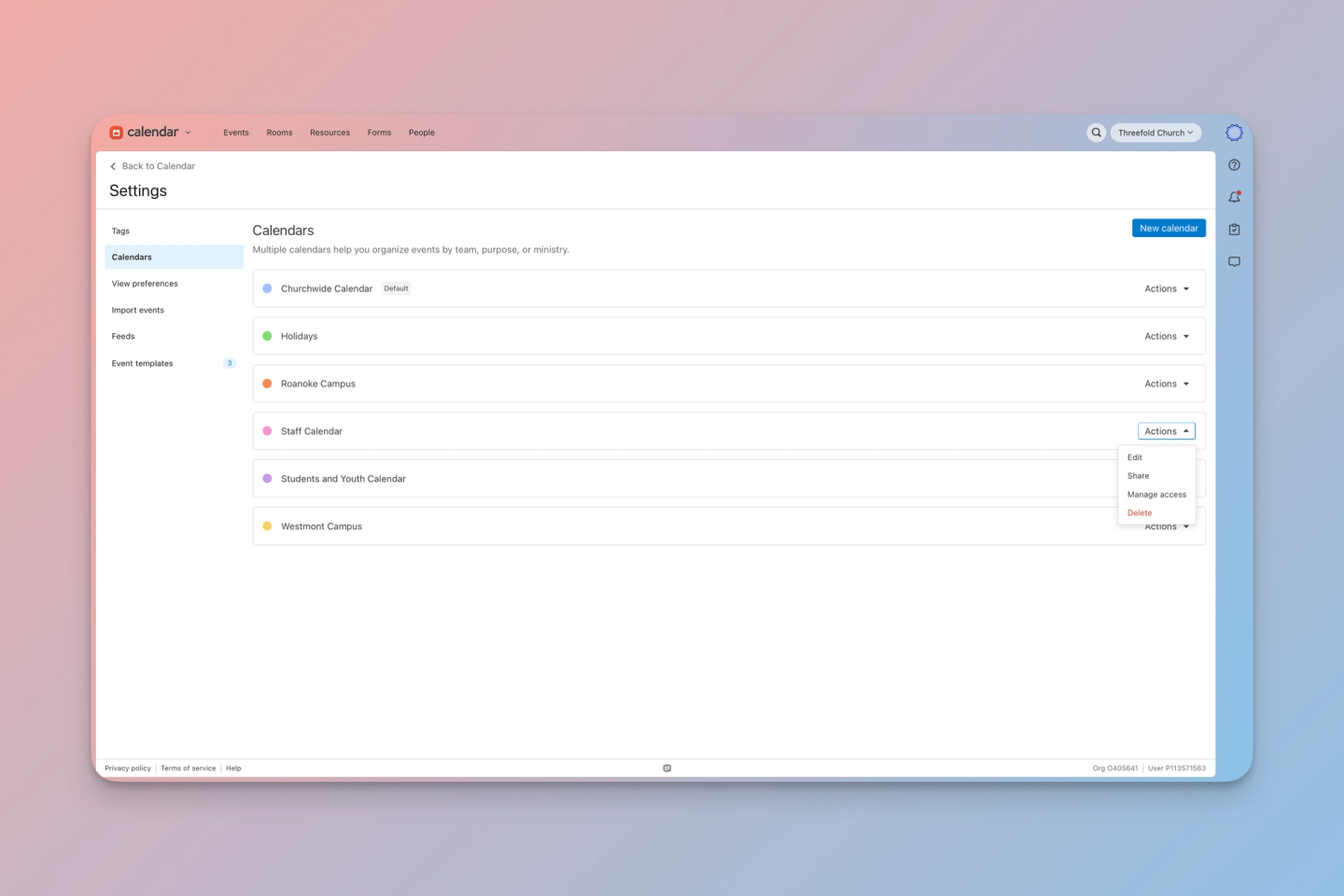
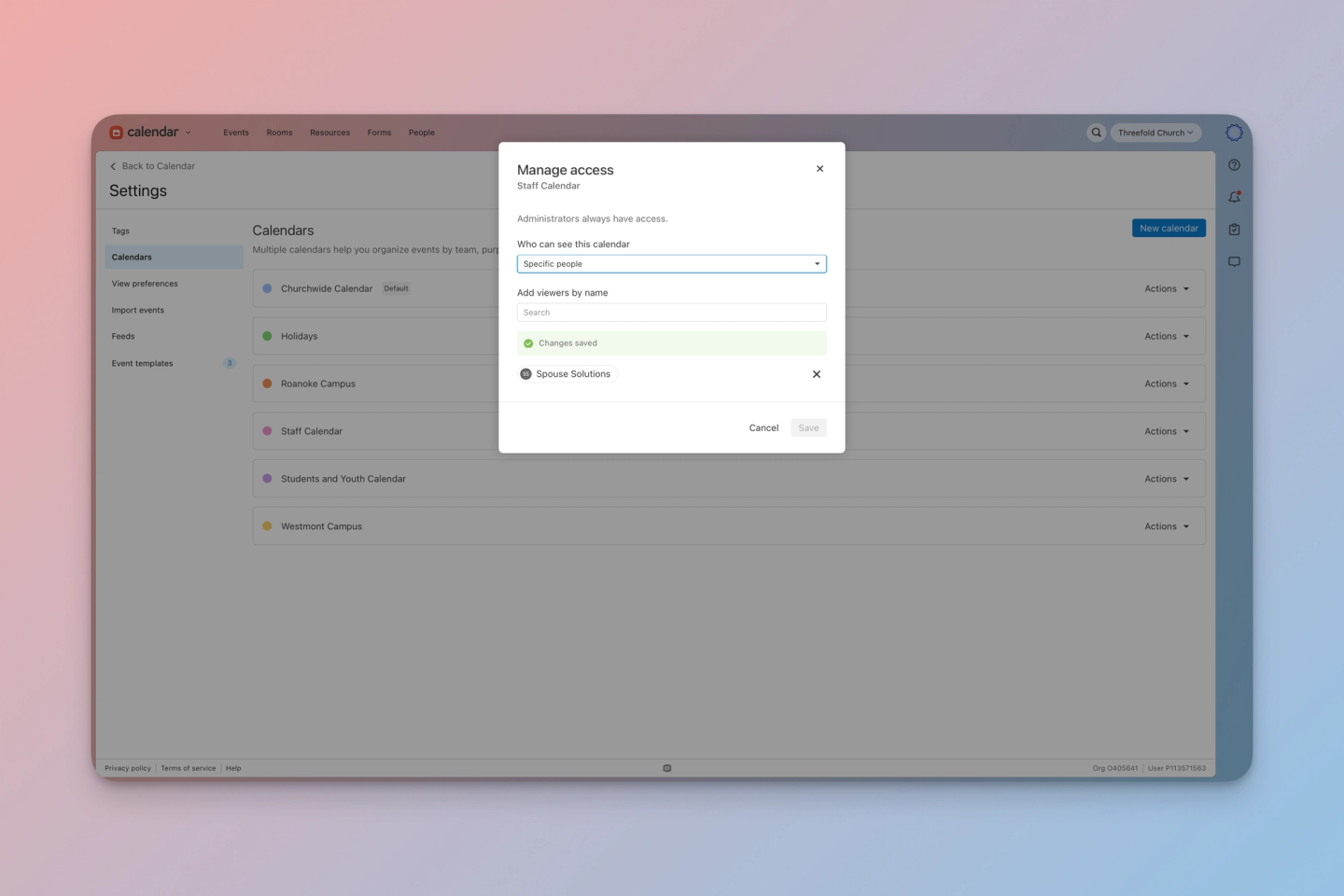
Open the settings page and navigate to the Calendars tab. For each calendar you have set up, you'll spot a new option under the Actions menu called “Manage access.” Open this setting to decide who can see this calendar, with the choice between “Everyone” or “Specific people.” Once you select “Specific people,” you can add the name of each person who should have access.
If you haven't set up multiple calendars yet, you can create one straight from the Calendars tab by clicking “New calendar.” Once it’s created, open the manage access window and set it accordingly.
A Few Things to Know Before You Turn This On
- Like many other areas in Planning Center, product administrators always have access to all calendars, and they're the ones who manage calendar settings.
- Event owners and managers can still be granted access to individual events even on a calendar they can't otherwise see.
- Members of Approval Groups can see all events that have requested rooms or resources assigned to their Group, so conflicts are still visible across multiple calendars.
- Every calendar you already have is currently set to "Everyone." Nobody’s access changes until you update it.
- Any calendar you create from now on will default with access to “Specific people,” meaning that administrators are the only ones with access until you change it. Be sure you confirm the access each time you create a new calendar.
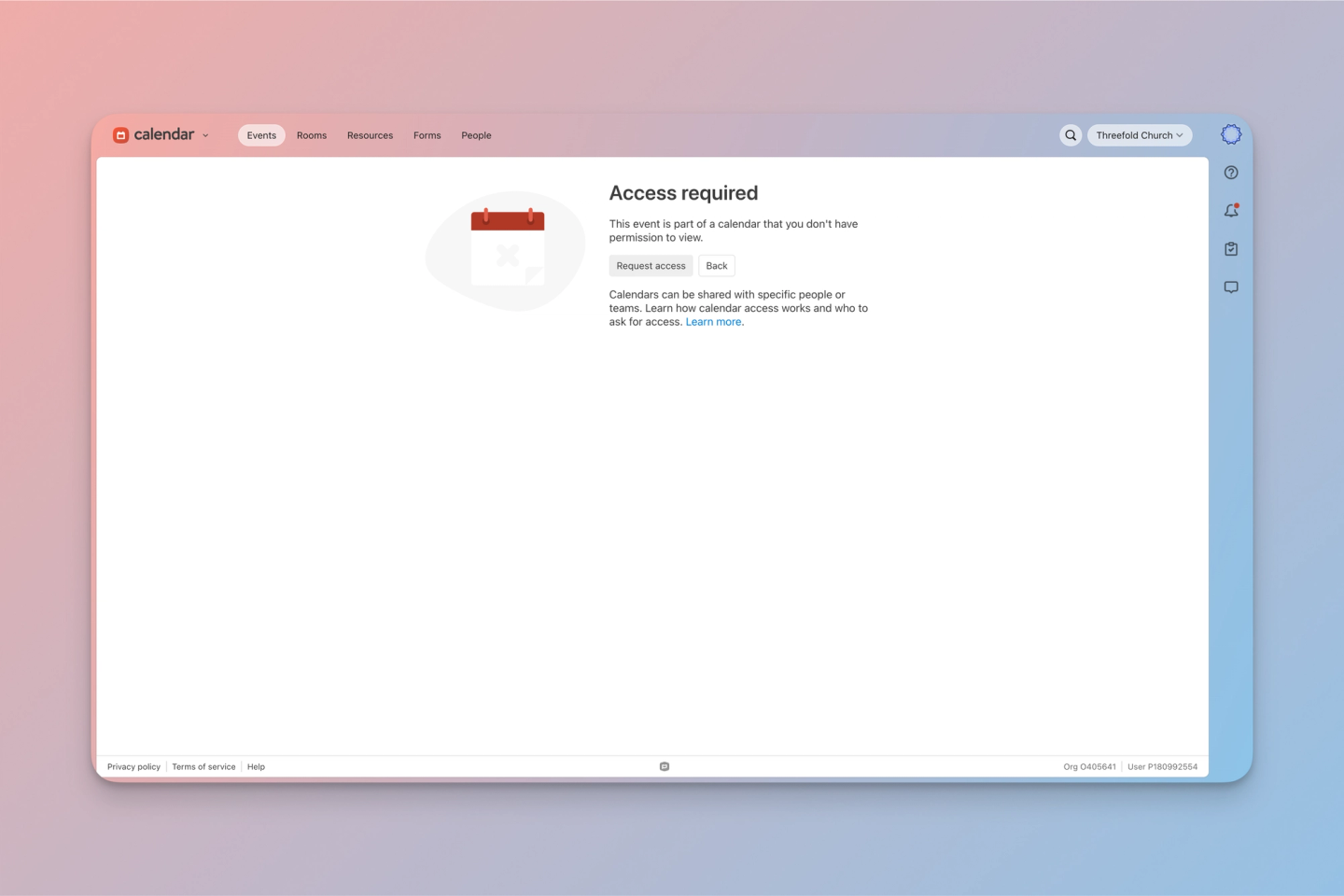
- If someone clicks a link to an event they don't have access to, they land on an “Access required” page with a button to request access. That request goes straight to your administrators, so nobody has to hunt down who to ask.
Why This Matters
Planning Center released Multiple Calendars with separate campuses and ministries in mind, but it was missing some key functionality, like the ability to customize access. That led a lot of churches to write the feature off as not all that useful.
Now that this level of control exists, Multiple Calendars may be worth taking a second look at setting up for your church. Here are some ideas for how to use multiple calendars:
- A Churchwide Calendar for any large-scale events that apply to the entire church.
- A calendar per campus, so individual campus teams don’t have their page clogged up with events two towns over. Add campus-specific events on this one while keeping multi-campus or larger events on the Churchwide Calendar. Give access to campus staff and any admins in the central office who need oversight.
- A Staff Calendar for meetings, PTO days, and other internal-only events, visible to staff members only. If you’re a multi-campus church, a separate Staff Calendar per campus could be beneficial as well.
- A separate calendar for a school or nonprofit that you share facilities with. Now ministry staff doesn’t have to see school events and vice versa.
- A calendar per ministry if you want to clean up visibility across ministries. Give the kids department access to their calendar, but not the adult discipleship calendar. You could even grant a high-capacity volunteer access to their ministry’s calendar without seeing every single event in the system.
- A Third-Party or Community Calendar for outside groups renting your space, visible only to the administrators and anyone who directly manages external events.
- A facilities maintenance calendar for things like painting, lawn care, and deep cleaning. Ministry leaders will still see conflicts when events like these are blocking out rooms and resources, but keeping the actual events on a separate calendar doesn’t fill up their calendar with unnecessary details. This calendar could also be shared with facilities volunteers who just need to know when their help is needed without seeing the entire church calendar.
Want Help Setting This Up for Your Church?
Threefold Solutions helps churches get the most out of Planning Center, from initial setup to ongoing strategy. If you want step-by-step video training on how to use Calendar, check out the Playbook here. And if you'd like hands-on help deciding how to structure calendar access for your team, schedule a free conversation at threefold.solutions.