

Every church collects information that wasn't meant for every set of eyes on your admin team. For forms to submit Benevolence requests, Pastoral Counseling needs, or to express interest in joining a Divorce Care or Celebrate Recovery program, submissions should only be accessible to a small, intentional group of people.
The problem? Until now, every Manager in Planning Center People automatically had access to every form. That left churches with a few uncomfortable workarounds: use a third-party form for sensitive areas and lose the connection to People profiles and workflows, avoid asking sensitive questions on forms altogether and call or meet in person to gather that information, or just trust that Managers wouldn't dig into forms that weren't relevant to their role.
None of those were great options, and Planning Center knew it. This has been one of the most-requested improvements for People, and we are excited to see that the update was finally released in May 2026.
What's New: Two Ways to Customize Form Access
Exclude Managers From a Specific Form
From a form's collaborator settings, you can now remove the default Manager permission group from any form, as long as at least one other individual or group still has manage permission on that form.
When Managers are excluded from a form:
- They won't see it in their form list
- They won't see submissions on People profiles
- They won't see related entries in the activity log
- If the form feeds into a workflow through automation, they'll see it labeled as [Hidden form], consistent with how hidden workflows and notes already work
No notification is sent when someone's access is removed. The form simply disappears from their view, quietly and cleanly.
Grant Access by Permission Group or Individual
Previously, additional collaborators on forms had to be added one person at a time. Now you can grant access to an entire permission level in a couple of clicks. For each collaborator, whether an individual or group, you choose either Manage or View Only access. View-only access lets people view submissions, while manage allows users to update questions, change settings, and add/remove other collaborators.
Adding individuals instead of an entire group is the right call for sensitive forms that only a couple of pastors or your finance team should see. On the other hand, granting all Viewers access makes sense for lower-stakes forms like a Connect Card or Next Steps form.
One thing to note: When a low permission level is granted access, each higher level also gets that access (e.g., if you grant access to Viewers, Editors and Managers automatically get that access too).
Forms Worth Locking Down
If you've been using other tools to collect sensitive information because you couldn't control who saw the responses, now you can bring those forms back to Planning Center. Submissions will go straight into profiles and workflows, and only the right people will have access.
Here are the forms that benefit most from restricted access:
Benevolence and Financial Assistance Requests When a family is in a difficult season and submits a request for financial help, they're extending real trust to your church. Restricting access to your benevolence committee or financial care team keeps that information where it belongs.
Counseling and Mental Health Intake Pastoral counseling intake forms often include mental health history, personal trauma, and family dynamics. Access should be limited to the pastors or staff members overseeing that care ministry.
Confidential Prayer Requests Depending on your prayer ministry, you may or may not share all prayer requests with staff, elders, or deacons. Instead, many churches include a question on prayer request forms asking, "May we share this with staff and our volunteer prayer team?" That makes the default private but opens the door when someone is comfortable sharing. Restricting form access reinforces that promise of confidentiality.
Support Program Enrollment (Divorce Care, Celebrate Recovery, etc.) Enrollment forms for recovery and support programs often include details about addiction, relationship history, and family situations. These should be visible only to the ministry lead and any licensed staff involved.
It’s worth noting that, while Registrations is typically the better fit for signups and event enrollment, it lacks the granularity to control submission privacy. This update gives you a privacy option in People that Registrations currently can't match.
How to Set It Up
To grant access to a permission group or individual:
- Open the form in Planning Center People
- Go to the Settings tab
- Under the Collaborators section, select "Add collaborator"
- Choose a permission group or select "A person..." and search by name
- Use the dropdown to select either Manage or View Only access
- Changes save automatically
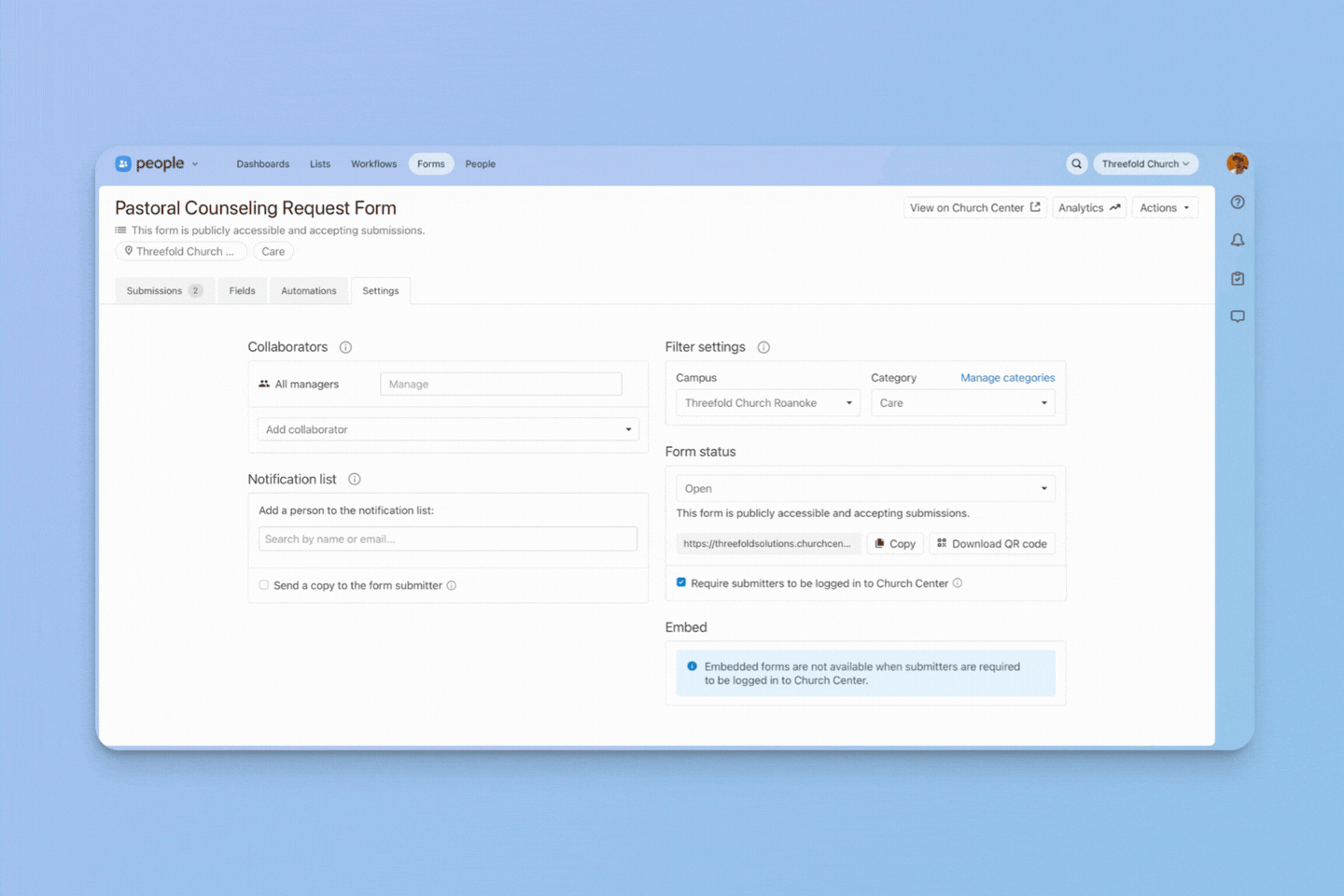
To exclude Managers from a form:
- First, add yourself and any other individuals who need access as collaborators with Manage access (follow the steps above)
- In the "All Managers" row, click the X to remove the group
- Changes save automatically
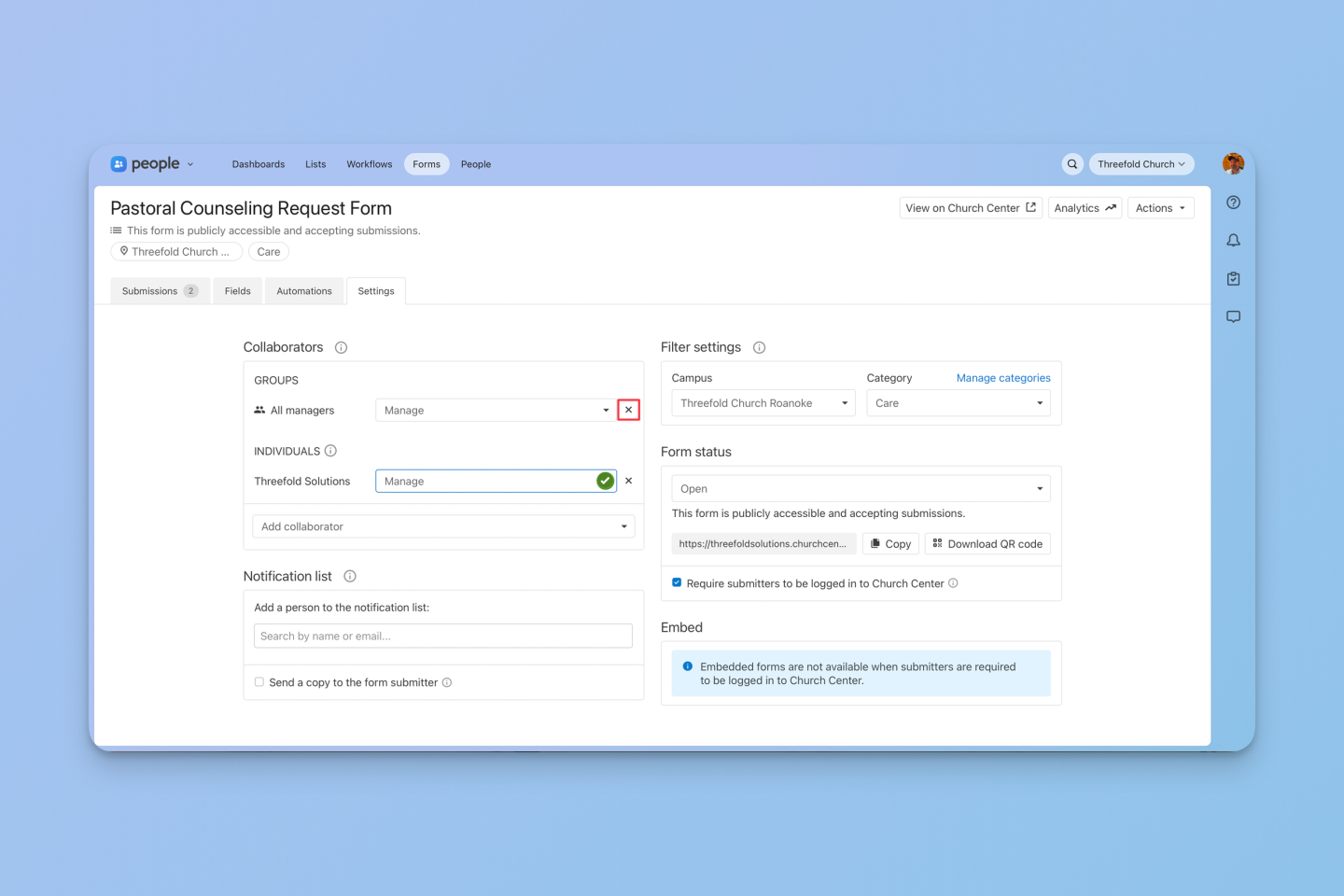
Note: You must have Manage access on the form to remove the All Managers group. If you don't need ongoing access to the form yourself, have another collaborator remove you after the setup is complete.
While you're in there, it's worth doing a quick audit of all your active forms. For each one, ask two questions: Who actually needs to see these submissions? And are there people who should view submissions but not edit the form itself? You may find some forms have been less protected than you realized.
What Stays the Same
New forms still default to sharing access with all Managers, so nothing changes about your existing setup unless you choose to adjust permissions on a specific form. This update only affects forms where you decide to make a change.
A Quick Note for Your Admin Team
When you restrict access to certain forms, it's a good idea to give your Managers a heads-up. Some may notice that certain forms have disappeared from their view and wonder why.
A brief explanation helps: "We're tightening up form access so that sensitive submissions stay with the right people. This is us being more intentional about how we handle private member information."
That framing positions it as a care decision, not a trust issue, and it reinforces confidence in your systems and leadership.
Want Help Putting This Into Practice?
Form permissions are one of those settings that's easy to overlook until something goes wrong. If you want help auditing your current setup or building out a permissions structure that actually fits your team, here are a few ways to get support.
The easiest place to start is the Threefold Community, where 300+ church leaders ask questions, swap strategies, and get input from people running churches just like yours. You'll also get access to live Q&A sessions and free resources. Join free today.
The Planning Center Playbook goes deeper —85+ step-by-step lessons covering People, forms, permissions, and every other Planning Center product. It's built for church administrators who want a clear, practical reference they can return to again and again. Check out the Playbook here.
For hands-on help, Threefold Solutions offers support contracts with various tiers to match your specific needs. Whether it's a one-time setup review or someone to call when something breaks, we're here for it. Schedule a free conversation at threefold.solutions.