

If you schedule volunteers who serve in multiple ministries (think tech teams covering Sunday services, Wednesday youth, and special events), you’ve probably felt the pain of creating duplicate teams in Planning Center Services.
In the past, you had to build the same team multiple times, keep members updated across all versions, and hope nothing slipped through the cracks. Sooner or later, something did. Maybe you missed removing someone who left months ago from your Special Event Team; cue the awkward “Hey, I don’t even go to this church anymore” reply after you send out a sign‑up. Or maybe you’ve had volunteers ask why their profile lists them in the band three different times.
Good news: Planning Center Services just released an update that fixes all of this.
Teams can now belong to multiple Service Types (or none at all), so you can finally manage your volunteer teams the same way you actually think about them: a single team that serves in multiple contexts.
What Changed?
Teams are now their own independent entity in Services. They’re no longer locked into a single Service Type. One team can serve across several Service Types without duplication or messy workarounds.
This update gives you:
- A cleaner structure
- Less volunteer confusion
- A lot less administrative work
You can now:
- Assign one team to multiple Service Types
- Create a team without assigning a Service Type
- Create teams directly from the Teams Index page
- See Service Type badges in team settings
- View Team Scheduling Data directly on the Teams Index Page
Permissions Breakdown:
To work with Multi-Service-Type teams, here’s what you need:
- Editor (or higher) permissions in a Service Type to add it to a team
- Editor (or higher) permissions in each Service Type affected to merge teams
- Editor (or higher) permissions for People and Plans to create a team from the Teams Index page
Additionally, team leads will automatically gain scheduler permissions in each Service Type their team is assigned to.
How to Use the New Multi–Service Type Teams
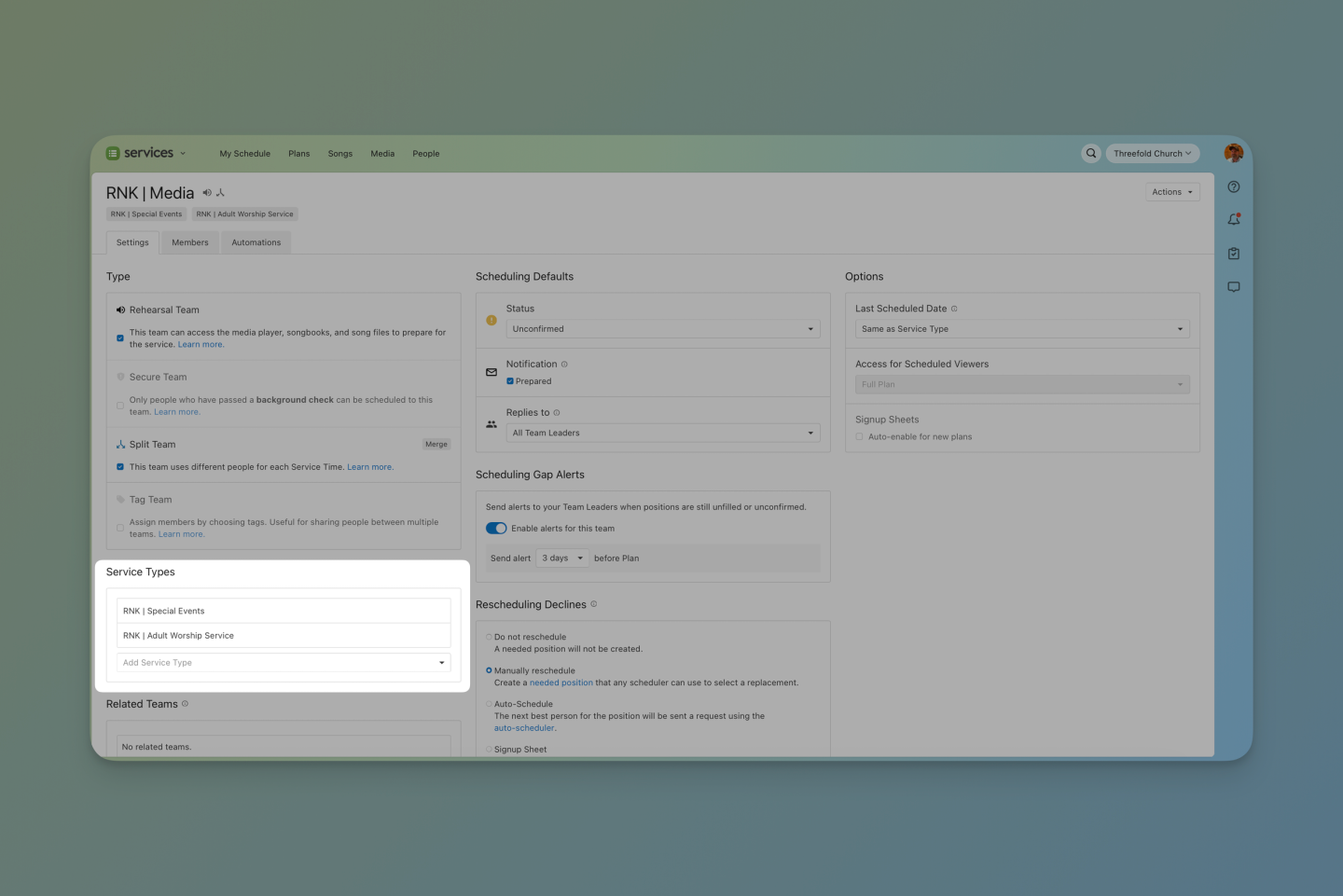
Assign Additional Service Types to an existing Team
To update any team:
- Open the Team Settings
- Locate the Service Types section
- Use the dropdown to add any Service Types you have editor permissions for
Creating a New Team
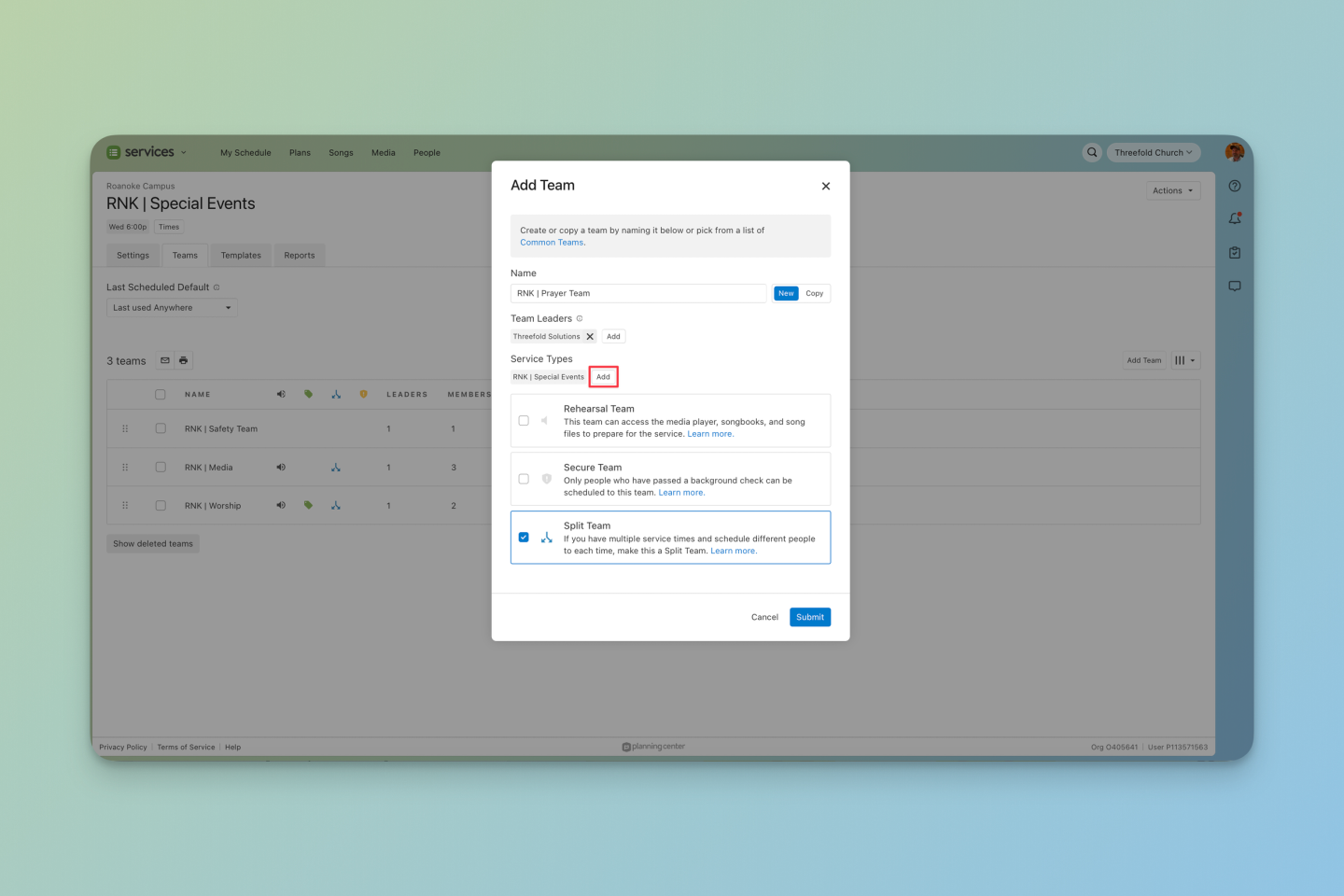
When you create or copy a team, you’ll now see a Service Types section where you can assign one or several Service Types right away.
Creating a team from within a Service Type:
- Navigate to the Service Type, selecting Plans in the top navigation.
- Use the sprocket (⚙️) next to the Service Type name, then choose Teams.
- Click Add Team and choose to create a new team or copy an existing one.
- Assign Team Leaders and Service Types using the Add button.
- Your name is automatically added as a team leader, but can be removed by hitting the X.
- The Service Type you started with is automatically selected. Choose additional Service Types as needed
- Enable optional features such as Rehearsal Teams, Split Teams, or Secure Teams.
Creating a team from the Teams Index Page:
1. Click People in the top navigation, then go to the Teams tab.
2. Select the blue Add Team button.
3. Name your team and choose to create a new one or copy an existing one.
4. Assign Team Leaders and Service Types. The Service Types field starts empty, so you can assign now or later.
Note: Teams must be assigned to the corresponding Service Type before you can schedule them in a plan. If you choose to create a team without assigning Service Types, come back later to manage your team's assigned service types in the team settings.
Merging Duplicate Teams
If you’ve been managing teams like “Worship – Weekend Services” and “Worship – Special Events,” the updated Merge function will be your new best friend.
To merge teams:
- Open the team you want to designate as the Primary team. The settings from this team will be applied to the merged team, including split team status, scheduling defaults, and team leaders.
- Click Actions in the top right.
- Choose Merge from the dropdown.
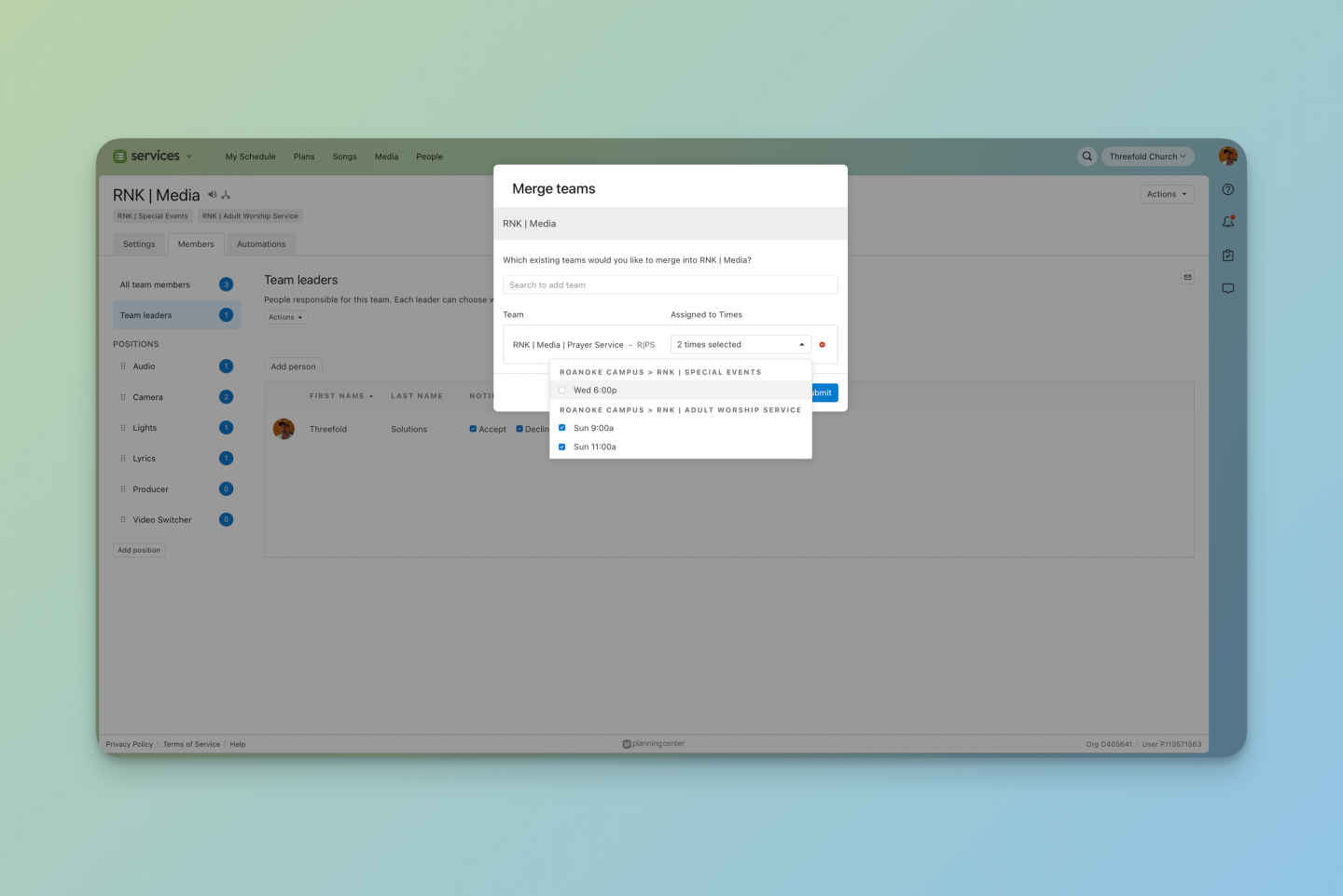
- In the pop-up window, search for and select the team(s) you want to merge into the primary one.
- If your primary team is a split team, use the Select Times dropdown next to each merging team to assign those team members to the new service type's time preferences after the merge.
- Click Submit.
The resulting team will:
- Automatically be assigned to all Service Types the originals belonged to
- Include any additional positions from the merged team(s)
- Retain the team's scheduling history across all associated service types
No more duplicate teams with mismatched members, positions, or preferences!
When to Use Separate Teams vs. One Team Across Multiple Service Types
Some ministries overlap, but others have unique requirements. Here’s how to decide whether to combine or separate teams:
Are the team leaders/schedulers the same?
- If not, utilize two separate teams. This keeps permissions clean and prevents confusion with scheduling responsibilities or knowing who volunteers should contact.
- If yes, one team may be easier to manage.
Are there different qualifications for each Service Type?
- If serving on weekends requires a higher level of skill or youth involvement requires a background check, use separate teams. Utilizing a combined team enables all team members to be scheduled to any plan this team is assigned to. This means risking somebody being scheduled for a service they do not meet the requirements for.
- If the only difference is preference or availability, one combined team works well. This will also help create a wider pool of people for any time you need extra help beyond your regular rotation.
💡 Tip: If using combined teams, consider using a split team, which allows volunteers to specify preferences for when to serve: Sundays or midweek, morning or evening.
Viewing the Updated Teams Index Page
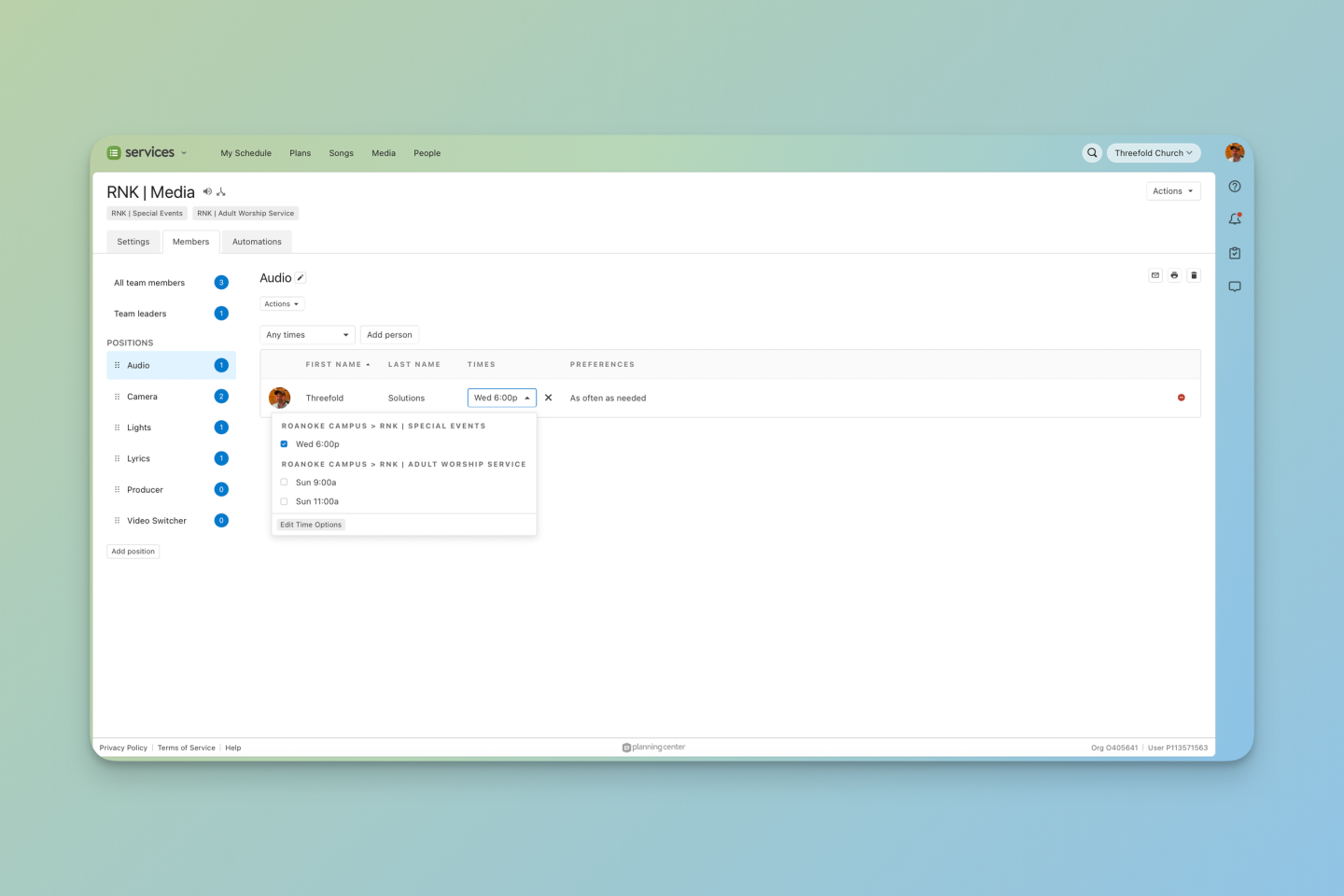
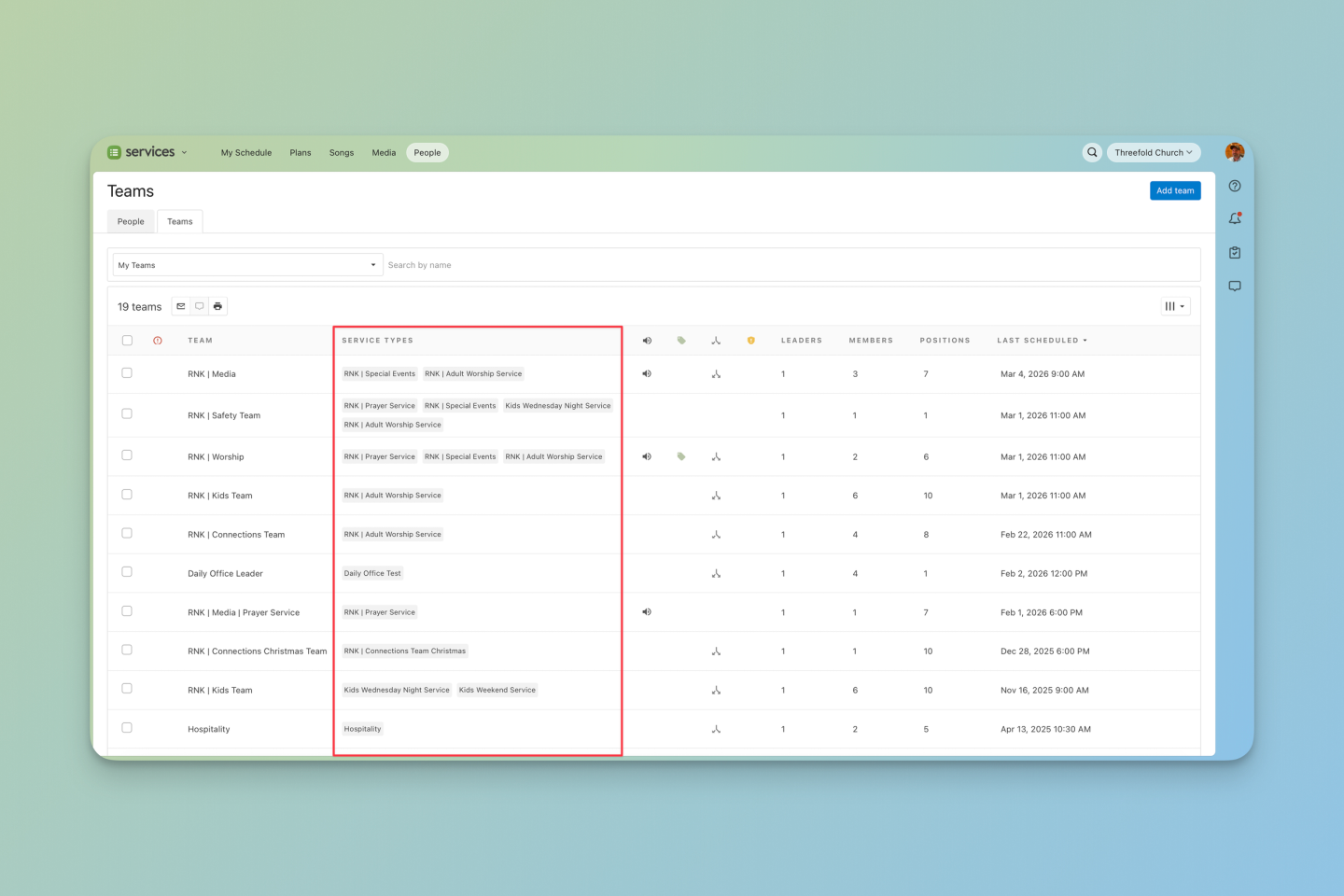
Visit the new and improved Teams Index Page (under the People tab) to see:
- A Service Types column showing exactly where each Team is used
- An updated Last Scheduled date that is calculated across all Service Types
These small changes make it much easier to track real activity and keep your volunteer structure clean as your church grows.
Why This Update Matters
This feature isn’t simply a technical improvement. It reflects how churches actually operate.
Less Admin Work
Build your Team once. Assign it anywhere. Update it in one place. You’ll spend less time managing the system and more time supporting your volunteers.
Less Volunteer Confusion
Volunteers won’t see duplicate teams in their profile, chat threads, or preferences.
Everything is streamlined and intuitive.
More Flexibility
Whether you have multiple service styles, midweek ministries, or events across multiple campuses, your structure can finally reflect your real-world workflow.
Get Started
Head to the Teams page in Planning Center Services to create a new Team or update an existing one. You’ll immediately see the new Service Types options and badges throughout the interface.
If you’ve been maintaining duplicate teams, now is the perfect time to merge them and simplify your setup. Your volunteers (and your future self) will be grateful.