

If you manage church volunteers in Planning Center Services, you know that one decline can create a domino effect that takes hours to fix. Someone says no on a Thursday night, then you’re spending Friday (which should be your day off) sending request after request to try to fill the gap. Even if your church asks volunteers to find their own subs, there hasn’t been a great way for the person declining to see who is available and get their replacement on the schedule once they find somebody.
Now, volunteers can quickly find and confirm a replacement when they decline a request, streamlining the process and reducing manual work for schedulers.
Here’s how it works, how you can enable it, and how it complements existing rescheduling tools in Planning Center Services.
How Volunteer Replacements Work in Planning Center Services
When a team member declines a request and volunteer replacements are turned on for their team, they go to a replacement selection screen before their decline is finalized.
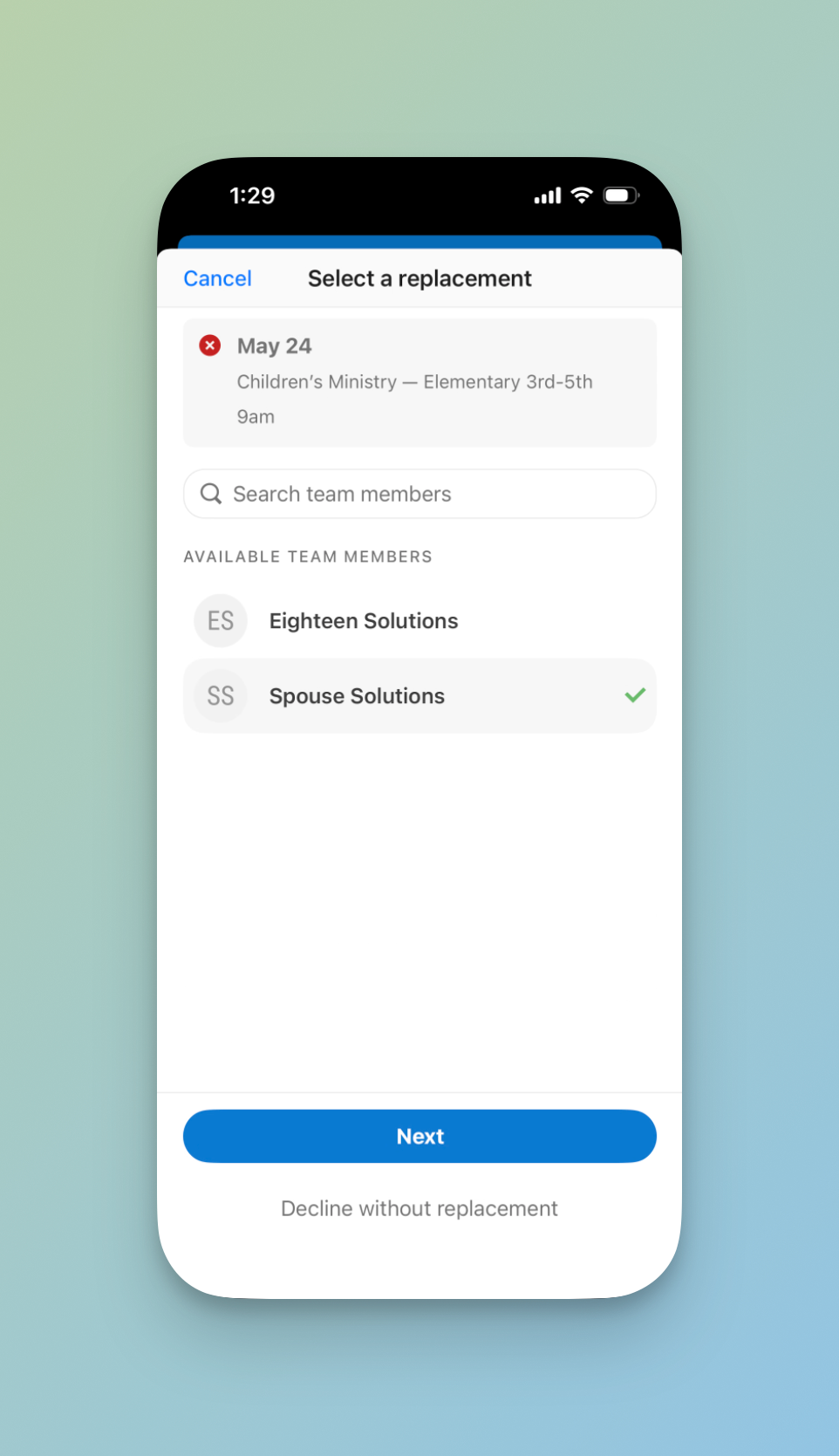
The volunteer sees a list of teammates who are available to fill the role. They can pick anyone from that list, but before the swap happens, they must check a box that says, "I've confirmed with [Name] that they can cover this."
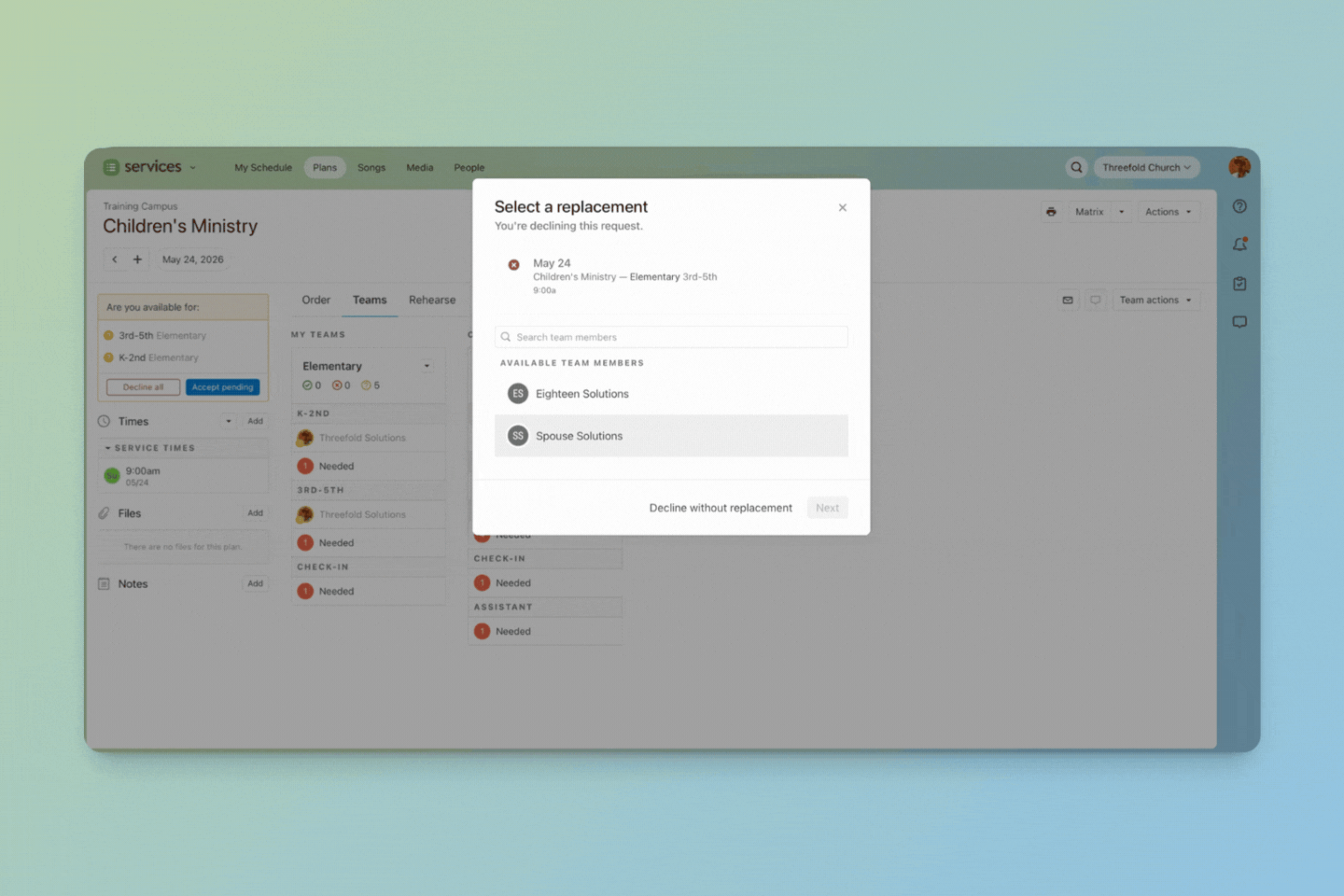
This step makes sure the person who can’t serve isn’t just selecting whoever pops up first. It’s intentionally built to make sure they’ve already reached out and gotten a yes before the swap is made. Once submitted, the replacement volunteer is automatically added to the plan as confirmed, and the original volunteer’s decline is complete.
The replacement will then get a notification confirming they’ve been added to the plan.
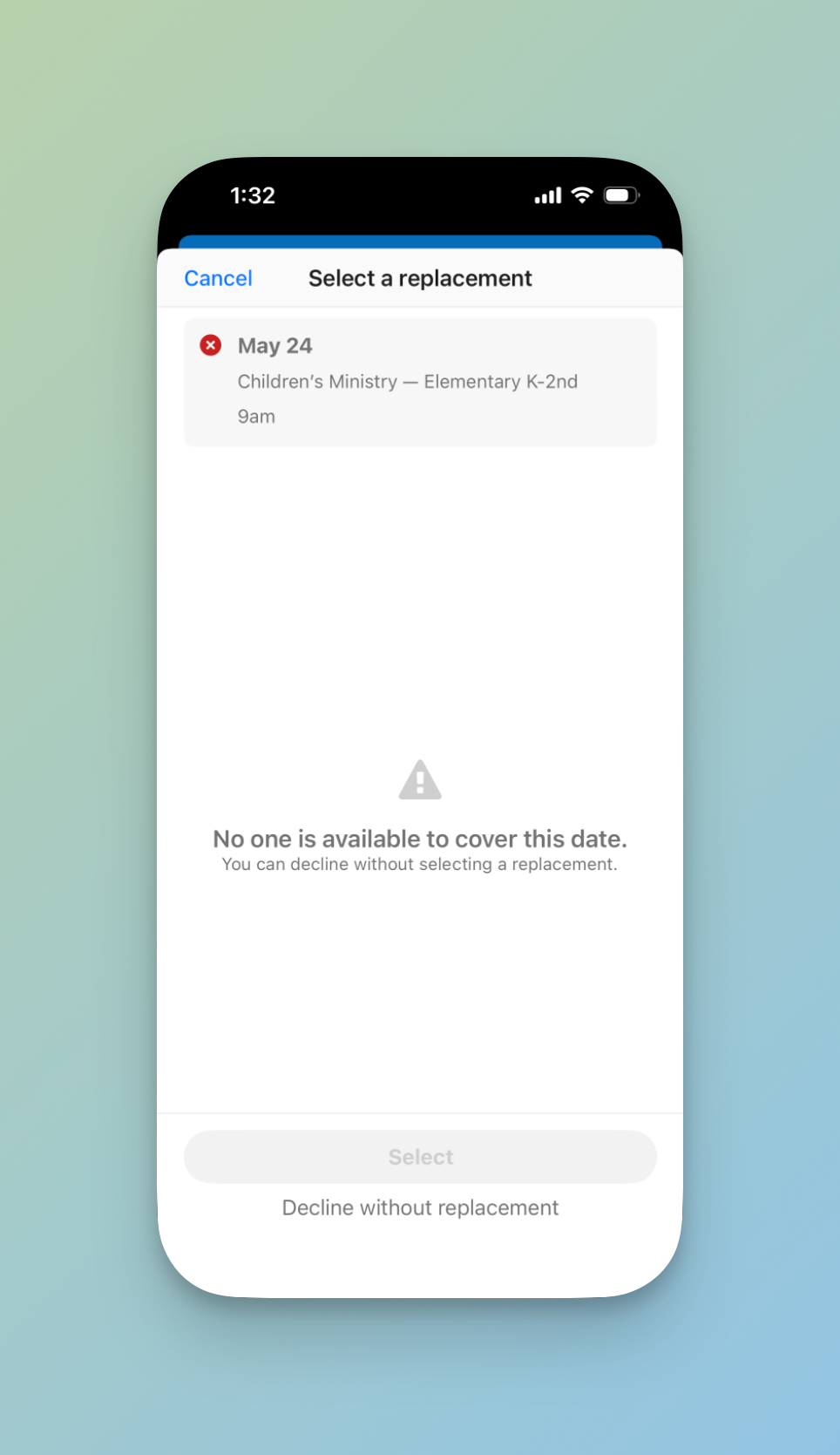
What if no one is available?
If no eligible teammates are found, the volunteer sees a message saying, *"No one is available to cover this date. You can decline without selecting a replacement."*The system then follows the usual process: a needed position is created, the leader is notified, and they must fill the spot manually.
How to Enable Volunteer Replacements
This feature is enabled at the team level, so you can turn it on for some teams and leave it off for others.
- Go to the People page in the top navigation.
- Select the Teams tab and find the team you want to configure.
- Click the team name, then select the Settings tab.
- Scroll to the Rescheduling Declines section.
- Enable Volunteer Replacements.
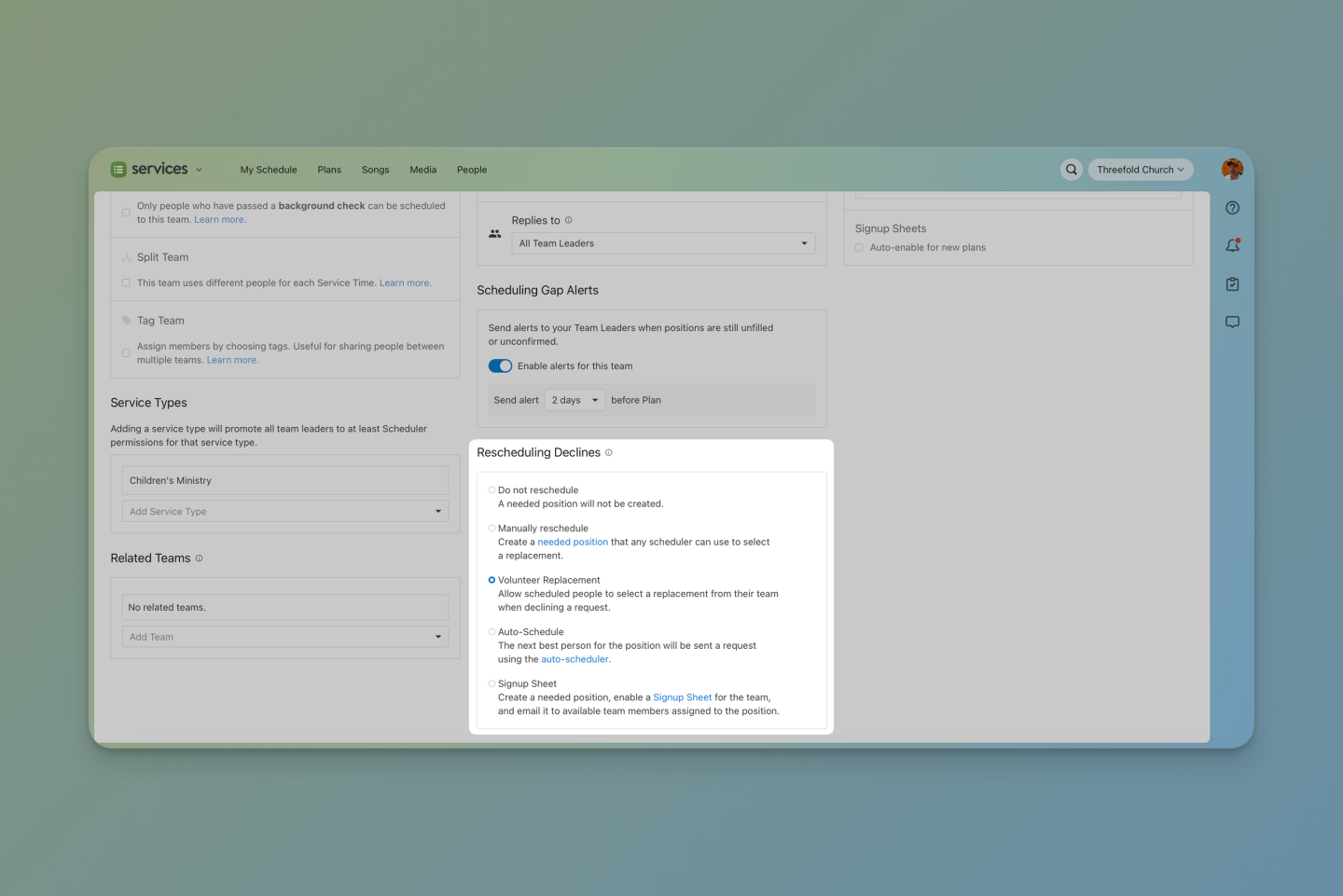
Once you turn it on, this feature works anywhere volunteers can decline—on the web, in the Services mobile app, and in both the Church Center App and website.
What Leaders See When a Volunteer Declines
If a replacement is found and confirmed, leaders get notified according to their current notification settings. If no replacement is found, a needed position is created and the leader is notified to fill it, just like before.
All Five Ways to Handle Volunteer Declines in Planning Center Services
Volunteer replacements are a new option alongside the other rescheduling choices in Planning Center Services. You’ll find all of them in the Rescheduling Declines section of your team settings. Here’s an overview.
Option 1: Do Not Reschedule
When someone declines, no needed position is created. The slot just stays empty.
**Best for:**positions that aren’t needed every week, like floaters or new volunteer shadowing. This option is the least common, but it still has its place.
Option 2: Manually Reschedule
When someone declines, a needed position is automatically created, and the "Replies to" person is notified to choose a replacement.
**Best for:**teams where skill level matters, like aworship or production team, and where the leader should choose who is requested. You don’t want the system randomly picking a replacement for the lead electric guitar.
Option 3: Volunteer Replacements (New)
As explained above, the volunteer who declines is asked to find and confirm their own replacement before the decline is final. The confirmation checkbox makes sure they’ve already talked to their replacement before the swap.
Best for: Teams with volunteer accountability and ownership of finding replacements. Also ideal for small, close-knit teams aware of each other's availability.
Option 4: Auto-Schedule
When someone declines, Planning Center automatically sends a request to the next best person based on preferences, availability, and how recently they’ve been scheduled. The "Replies to" person is kept in the loop with notifications along the way.
Best for: Large teams, like greeters or parking, where you mainly need people who are available, not necessarily those with special skills.
Option 5: Signup Sheets
When enabled, if someone declines, a signup sheet email goes to all other team members who share the same position. Volunteers can claim the position on a first-come, first-served basis via email or from their My Schedule page in Services or Church Center.
One thing to know: When signup sheets are triggered by a decline, all open positions on the team become available for signup. Only people with the same position as the person who declined get the signup sheet email, but others might see it if they check their schedule.
**Best for:**Teams where you want to empower volunteers to step up on their own instead of being assigned, and where availability matters more than specific skills.
Choosing the Right Decline Settings for Your Church Volunteer Teams
Not every team needs the same setting. Here's a quick guide:
Worship band or production → Manually Reschedule
Large hospitality or parking team → Auto-schedule or Signup sheets
Kids Team → Volunteer Replacements or Signup Sheets
Safety Team → Manually Reschedule
Ushers → Volunteer Replacements or Signup Sheets
Pick a decline setting that fits each team’s needs and culture. If a team requires special skills or places a high level of responsibility on the volunteer, stick with Manually Rescheduling. For other teams, try one of the other options to save time and effort.
Before You Turn On Volunteer Replacements
A few things worth doing first:
**Let your team know what to expect.**Communicate the new process for declining a position and ask your team members to find and confirm a replacement before submitting. Setting this expectation early helps avoid confusion and conveys the goal of this change: ownership and accountability, rather than just a new feature.
**Clean up your rosters.**The list of possible replacements shows current team members in that position. Archive anyone who isn’t active before turning this on, so volunteers don’t attempt to swap with people who left months ago.
**Encourage volunteers to set blockout dates.**Knowing ahead of time who is unavailable makes finding a replacement a lot easier. The replacement page only shows those who are available, so anyone with blockouts will already be taken out of consideration.
Take a Few Minutes to Review Your Decline Settings
If your leaders are still spending time each week chasing down replacements, a settings change might be all it takes. Pull up your Planning Center Services team settings and walk through each team, thinking through which teams fit Volunteer Replacements and which work better with Auto-Schedule or Signup Sheets. A few minutes now could save your team a lot of unnecessary back-and-forth down the road.
Need Help Getting More Out of Planning Center Services?
If you want to go deeper on how to configure Planning Center Services for your church, the Planning Center Playbookis a step-by-step training course built for church administrators.The course has over 85 videos covering Services from both the admin and volunteer perspectives, so your staff and volunteers can all be confident in their roles and responsibilities. Check out the Playbook here.
If your church needs help setting up a scheduling workflow that fits your team, that’s what we do at Threefold Solutions. We help churches with Planning Center configuration every day and offer options for different budgets and needs. Contact us to schedule a free conversation with our team.