
Planning Center has been releasing a ton of helpful updates recently, and two new changes to People just dropped that we’ve been waiting a long time for. One is extremely helpful for anyone who needs to collect forms for kids, and the other is for anyone who's ever wished form follow-up could be customized based on response.
Here's what changed and how to use it.
Planning Center Forms Now Support Submissions for Household Members
If your kids or youth ministries require forms such as medical releases, permission slips, waivers, or even Baptism interest forms for children, you may have noticed that utilizing a People form for these is harder than it should be. If you send a parent a link to the form and they open it and fill it out for their seven-year-old, that should work, right? Not exactly.
Until recently, the information gathered in a form was written to the profile of the person filling it out. That means even if the parent meant to say their child was in first grade and was allergic to peanuts, they may have accidentally added first grade and the allergy to their own profile instead.
To prevent this, these forms required very specific instructions, such as asking parents to log out of their accounts to answer as their child. Other churches chose to use basic text fields and require a team member to go back and update the correct profile afterward. Some churches just found paper easier to use.
The only way to get around this was to start with a Registration and add the form as an additional attendee form. Then, after submitting the registration, the parent could follow the link and actually fill out the form for the correct child.
Good news: Planning Center now handles this natively.
How to Enable Household Member Form Submissions in Planning Center
In your form settings, enable Allow submitting on behalf of a household member. That's it on your end.
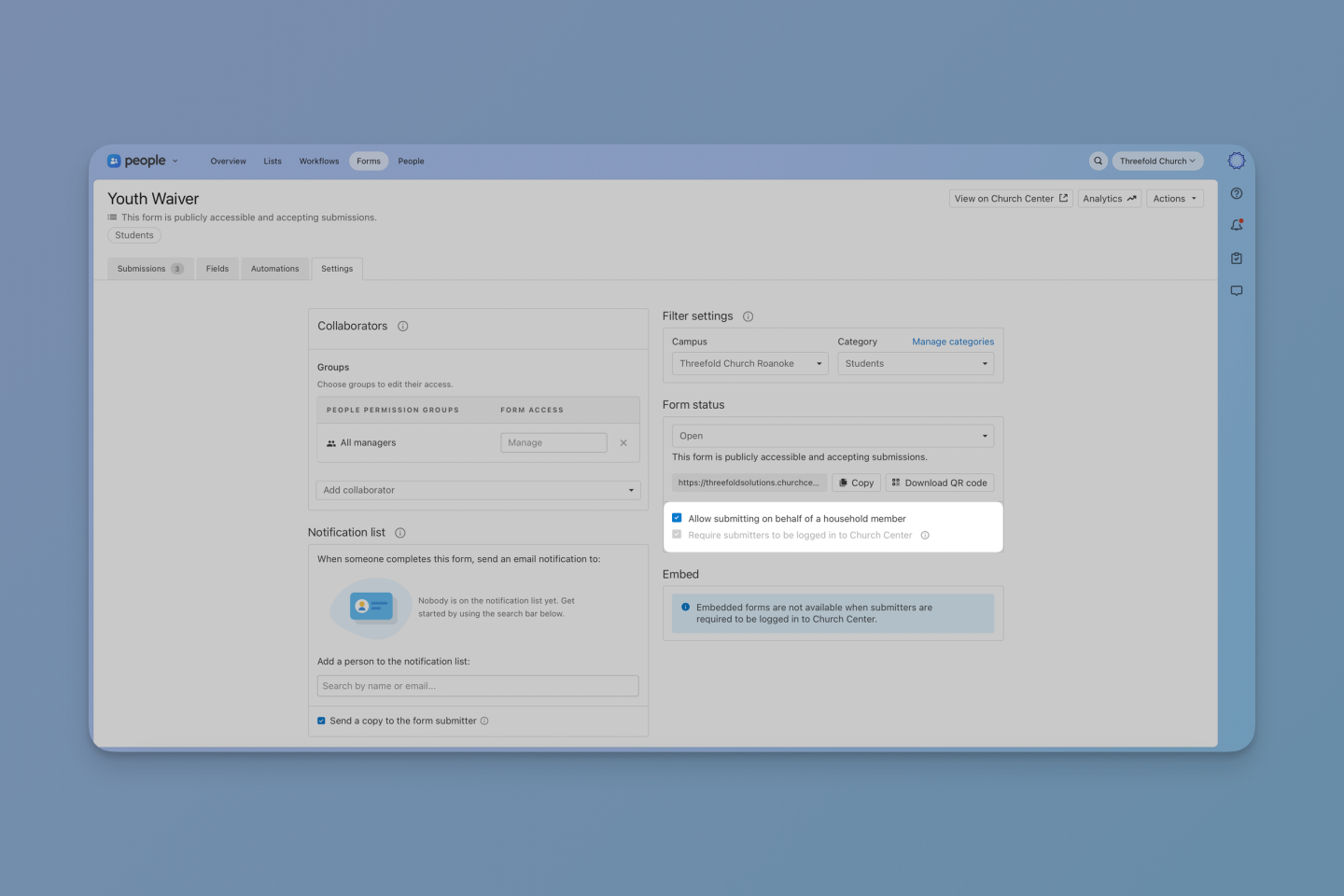
When a congregant opens the form, they'll be prompted to log in and then see a household member selection screen before the form itself. They can choose themselves, any existing household member, or add a new adult or child right from that screen if the person isn't in their household yet. The form shows a header confirming who they're completing it for, and the submission automatically attaches to the correct profile.
A Few Things to Know Before You Turn It On
- Login is required. Because the feature pulls from household relationships, all submitters must log in or create an account prior to completing the form when this setting is enabled.
- You can't use this alongside the Household Members field. Those two settings serve different purposes: the Household Members field adds new people to a household during a submission; this setting submits on behalf of someone already in the household. Planning Center won't let you use both on the same form.
- Multi-household situations are handled. If someone belongs to more than one household, they'll pick the household first, then the person.
- "Submit another response" loops back to the household selection screen. That makes it easy for a parent to submit the same form for multiple kids without having to log back in.
This applies to standalone People forms on Church Center. If you're using a People form attached to a Registration, that flow works exactly as it always has.
Planning Center Form Automations Can Now Trigger Based on a Specific Response
While automations have been possible in Planning Center for a while now, form automations have always been surprisingly basic. Especially on something like a connect card, you know the right follow-up depends on the answer. Sometimes an email is sent automatically with a link to complete a volunteer application. Sometimes the submitter should be added to a follow-up workflow. Sometimes the person’s profile should be marked as a guest. You just couldn't make the form do that, at least not without some workarounds involved.
Until now, form automations fired the same way for every submission. The one exception was workflow fields, which could route people based on their selection in that one question. Everything else — automated emails, updates to membership type or campus, or any other custom field — treated every submission identically. Even if you used workflows to trigger customized follow-up, automated emails had to be set up via lists, which didn’t refresh until 2am the following morning.
That's changed. Automations can now be set to trigger when someone answers a specific field in a specific way. These automations fire the moment someone submits, which means immediate action rather than waiting for a delay or sending an email to your congregant at 2am.
How Conditional Form Automations Work
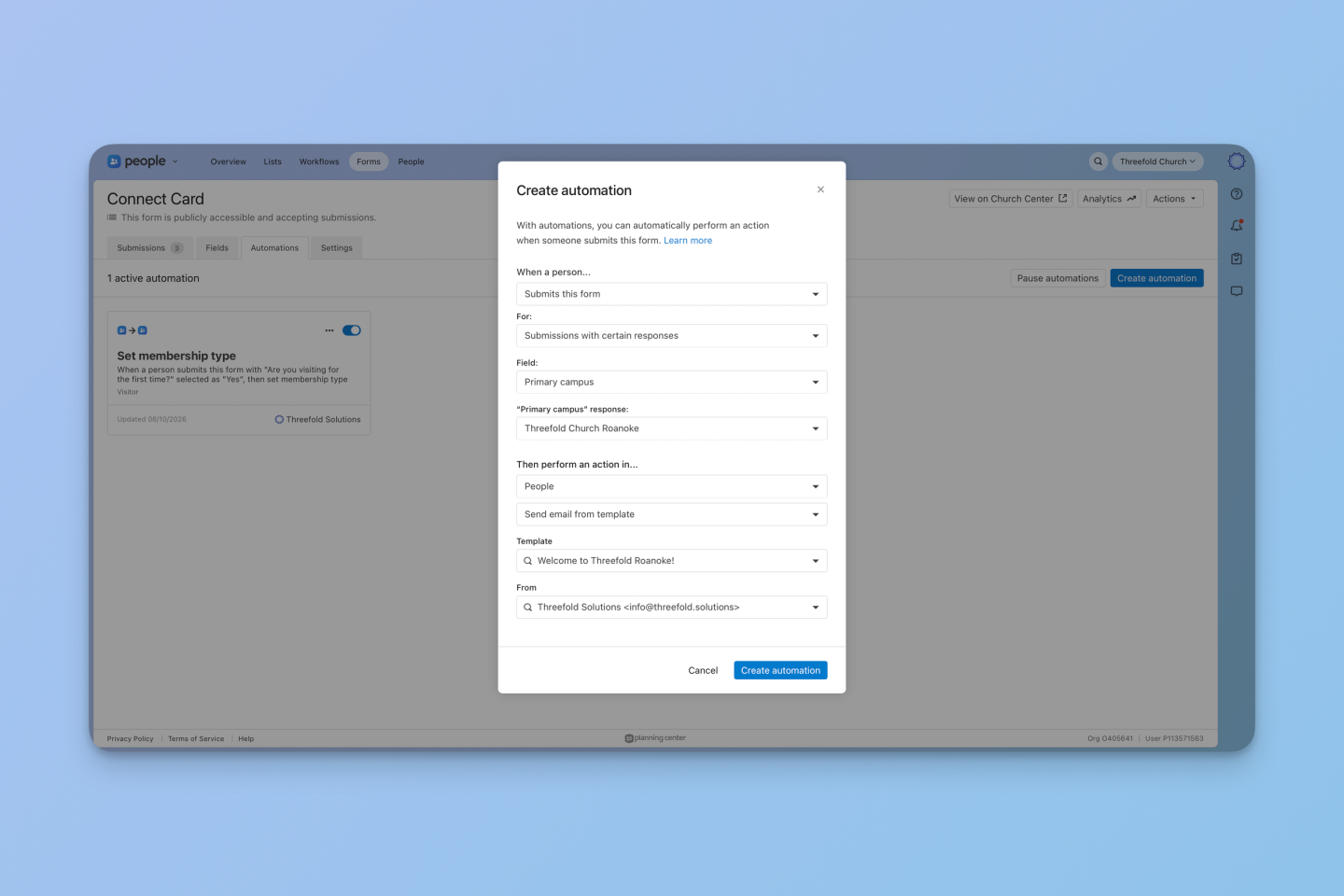
When you add an automation to a form, you'll see a new option for who it applies to:
- All submissions works exactly like before.
- Submissions with certain responses lets you pick a field and the answer that triggers it.
The fields you can trigger on:
- Dropdown and checkbox basic fields
- Yes/no, dropdown, and checkbox custom fields
- Campus selection
From there, every action you already use is available: send an email from a template, add someone to a workflow, update a profile field, add them to a group, or add a task.
Real Examples of Conditional Form Automations
First-time guest checkbox: Your connection card has a yes/no field: "Is this your first time visiting?" When someone checks yes, two things happen automatically: their membership type updates to Guest, and they receive a personal welcome email. No additional workflows or lists are needed.
Campus selection: A visitor picks which Campus they are attending from a dropdown. That triggers a campus-specific welcome email from that location's pastor. Someone who picks the Downtown Campus gets a completely different email than the North Campus. Each campus gets its own automation, all living in the same place.
Stage of life dropdown: Your form asks where someone is in life: student, young adult, young family, or empty nester. Each selection triggers an email with information about the ministry that fits their stage. The students and young adults hear about your college community. The young family gets details about kids ministry and family events. The right information gets to the right person without any manual sorting.
What to Know Before You Build
Each automation can only have one trigger, so even if multiple scenarios get the same follow-up action, you’ll need separate automations to match each. In addition, if you want different follow-up actions for each choice in a single question, you'll set up a separate automation per option. While this can seem like more work upfront, it will save you time in the long run and reduce the complexity of your day-to-day process.
The Bottom Line
If your church regularly collects forms for children, the household member submission setting is the fix you've been waiting for. Parents can easily complete forms for their kids without difficulty, and the data lands in the right place automatically.
If you've been wishing your form follow-up could respond to what someone actually said instead of just the fact that they submitted, conditional automations give you that. Build the logic into the form itself and let it run.
Both updates are live now in Planning Center People.
Want Help Setting These Up for Your Church?
At Threefold Solutions, we help churches get the most out of Planning Center — whether that's configuring new features, building out workflows, or just figuring out which setting does what. If you have questions about either of these updates, we'd love to help.
Get in touch with our team or join our community where church admins ask questions like this every day.