
If you manage follow-up processes in Planning Center People, you may have noticed things look a little different in Workflows lately. Planning Center recently pushed a redesign of the Workflows interface, along with new features that make managing steps, assignees, and reporting a lot more practical.
Here's what changed and how to use it.
What Changed in Planning Center People Workflows
The biggest update is the layout. The Workflows section has been reorganized with clearer controls and a cleaner structure, so the settings you use most often are easier to find. The core functionality is the same. It just takes less digging to get to it.
The biggest adjustments include:
- The “Add card” (previously called “Add someone to workflow”) button is now in the top-right corner.
- You now add or reorder steps using a single menu in the left pane. To edit or delete a step, use the button on the right side of the step.
- View options, like ready/snooze status, assignee, and display order, are consolidated at the top for faster filtering.
- Snoozed cards are easier to identify at a glance.
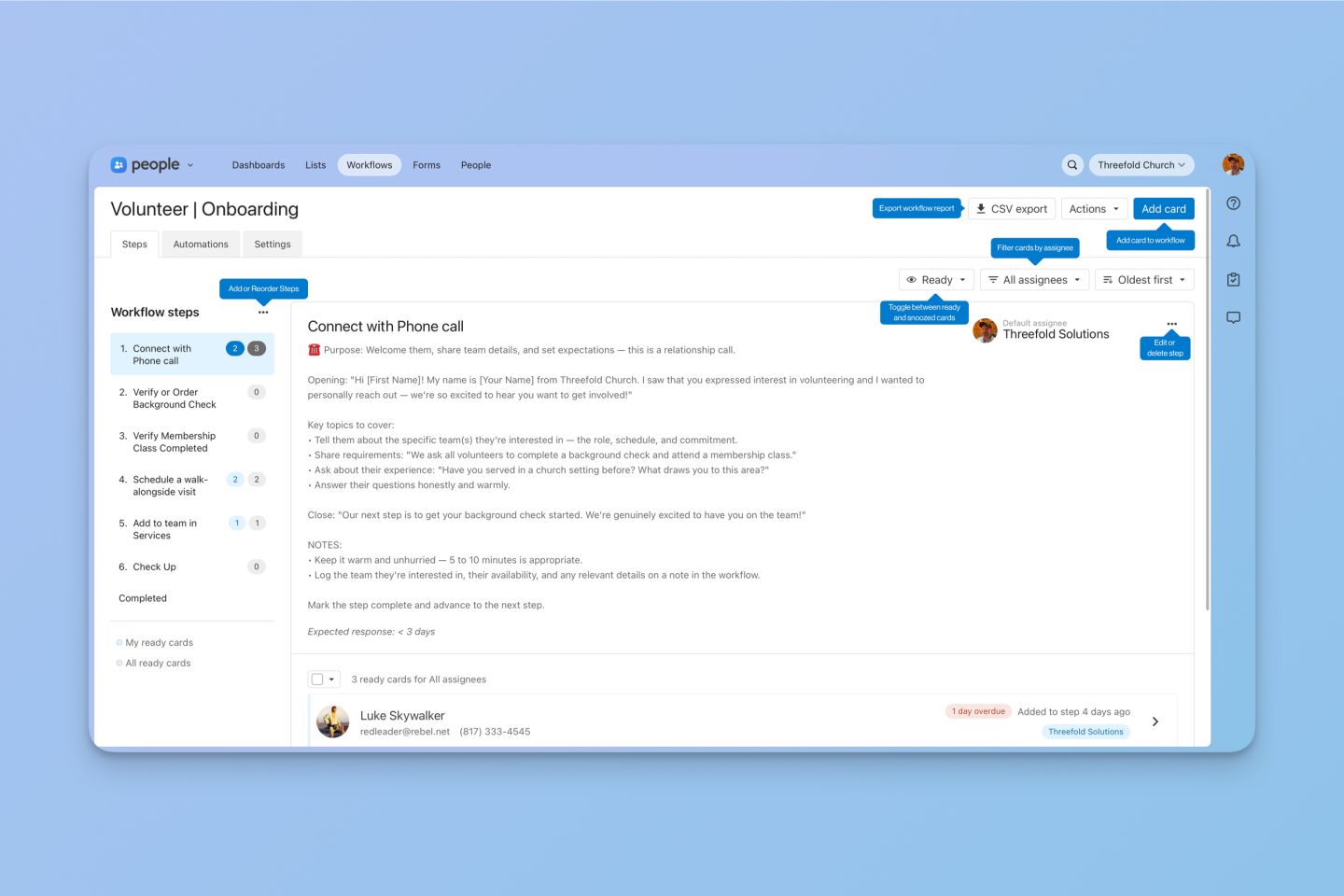
Shown above: A closer look at the updated Workflows interface with callouts highlighting the key layout changes.
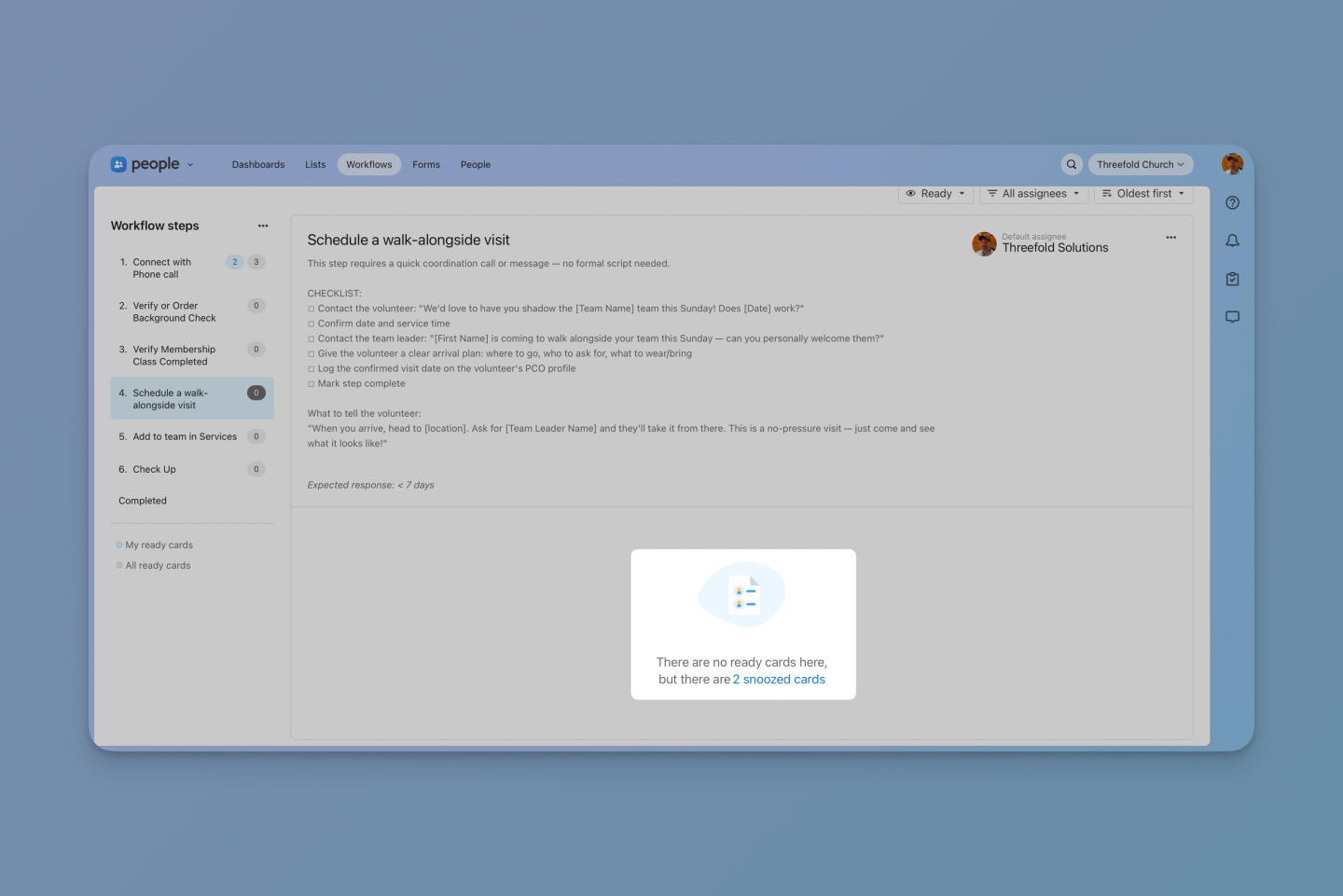
Shown above: When a workflow step has no ready cards, the updated interface now clearly indicates any snoozed cards waiting in the background — so nothing gets accidentally overlooked.
New Feature: Filter Workflow Cards by All Assignees
A new filter lets you see workflow cards for all team members at the same time, instead of checking each person’s assignments one by one. If you manage a workflow and want to see everything at a glance, this feature will make things easier.
To use this, open a workflow and look for the assignee filter in the top-right corner. Choose "All Assignees" to view every card in the workflow, no matter who it’s assigned to.
New Feature: Bulk Update Default Assignees for Workflow Steps
This one solves a real pain point for anyone who has had to restructure a workflow after a staff change.
Here's the scenario: a team member changes roles, transitions out, or a new person takes over a ministry area. Before this update, you had to open each workflow step one at a time and manually update the default assignee. For a workflow with many steps, that was a significant time investment.
Now you can update multiple steps at once. Navigate to the workflow and open the step editor as normal. When you change the default assignee, you now have three options:
- Apply to this step only— updates only the step you're editing.
- Apply to this step and any without a default assignee — When you inactivate a person or remove their collaborator permission, any steps assigned to them will lose their default assignee. This option fills in those gaps across the workflow without overwriting steps that already have someone assigned.
- Apply to all steps in this workflow— Changes the entire workflow, even steps that still have an active assignee.
It's a minor change with a real payoff when your team shifts and you need to keep things accurate without spending an afternoon clicking through settings.
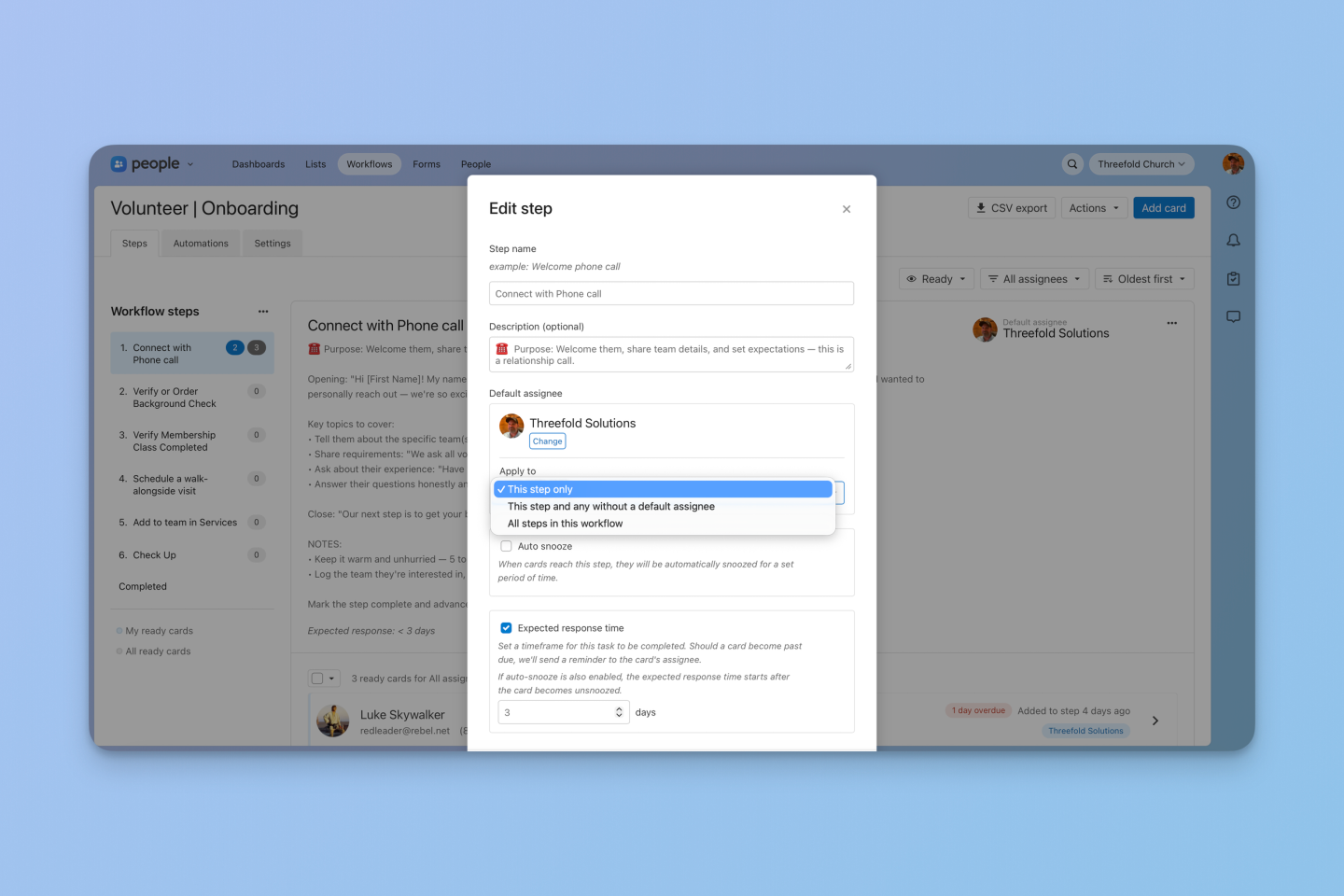
Shown above: When editing a step's default assignee, the "Apply to" dropdown lets you choose how broadly to apply the change.
New Feature: Export a CSV Report for Workflow Cards
This is the one workflow managers have been waiting for. People Workflows now has its first built-in reporting tool: a CSV export. This is especially helpful for leaders who oversee the workflow and need to hold the team accountable for follow-up.
The report includes a detailed snapshot of every card:
- Person details: full name and profile URL
- Card details: date added to the workflow and total days in the workflow
- Current progress: current step, days in that step, and card status (active, overdue, or snoozed)
- Assignee info: who the card is currently assigned to
- Follow-up context: days overdue and snoozed-until date where applicable
You can even include completed cards in your report to see when and how long it took people to complete the workflow.
Reports pull up to 10,000 of the most recent cards. Keep in mind: the export respects the "Can export CSVs and reports" permission, so only users with that setting will see the button.
Why These Updates Matter
Workflows in Planning Center People are only as useful as they are maintainable. When the interface is cluttered, updating assignees is tedious, or you have no way to see what's actually happening across your team, people start working around the system instead of through it — and people fall through the cracks.
These three updates address that directly. You can see what your team is working on, keep workflows accurate as staff changes happen, and pull data on how your follow-up process is performing.
If you haven't explored the updated Workflows interface yet, it's worth a few minutes to walk through the new layout and try out these features.
Need Help Setting Up Workflows in Planning Center?
Threefold Solutions specializes in helping churches get the most out of Planning Center — including building and maintaining workflows that actually keep people from falling through the cracks. If you want to think through your follow-up processes or get a second set of eyes on how your workflows are structured, we'd love to help. Schedule a free consultation →
Have questions about Planning Center beyond workflows? Check out the Planning Center Playbook — 85+ lessons covering every Planning Center product, plus a community of church leaders who use Planning Center every day.