
Keeping church member information accurate is one of those tasks that never quite ends. People change email addresses, get new phone numbers, move across town, and welcome new family members. If your team relies on profile update forms or manual data entry to keep your church database current, you know how easily things slip through the cracks.
Instead of always struggling to keep up with ever-changing profile information, empower your congregants to update their own profiles in Church Center. Planning Center People lets you choose fields you want to open up so people can keep their information current, along with their family's, whenever something changes.
Here's what congregants can update in Church Center, how to set up profile permissions in Planning Center People, and how to invite your church to take part.
What Congregants Can Update in Their Church Center Profile
You can choose which fields to show on a congregant's Church Center profile and whether people can make changes. Here are your options:
- Basic profile info: Includes things like contact information, photo, gender, birthdate, grade, campus, and medical notes.
- Household: Information about other members of the family. Adults in a household can update information for other household members, and you can also decide whether to let them add or remove household members on their own. This can help when a visiting relative accidentally ends up in a household after being checked in, or when a new baby is welcomed into the family. Adding new members creates new profiles, but removing members doesn't delete them. The profile remains in the database, just outside of the household container.
- Custom fields: The specific fields that your church tracks beyond basic personal information, such as:
- Graduation year
- Emergency contact
- Occupation
- T-shirt size
- Salvation, baptism, or membership date
- Spiritual gifts or strengths
- Preferences to receive churchwide or ministry newsletters
Choose the Right Permission Level for Each Field
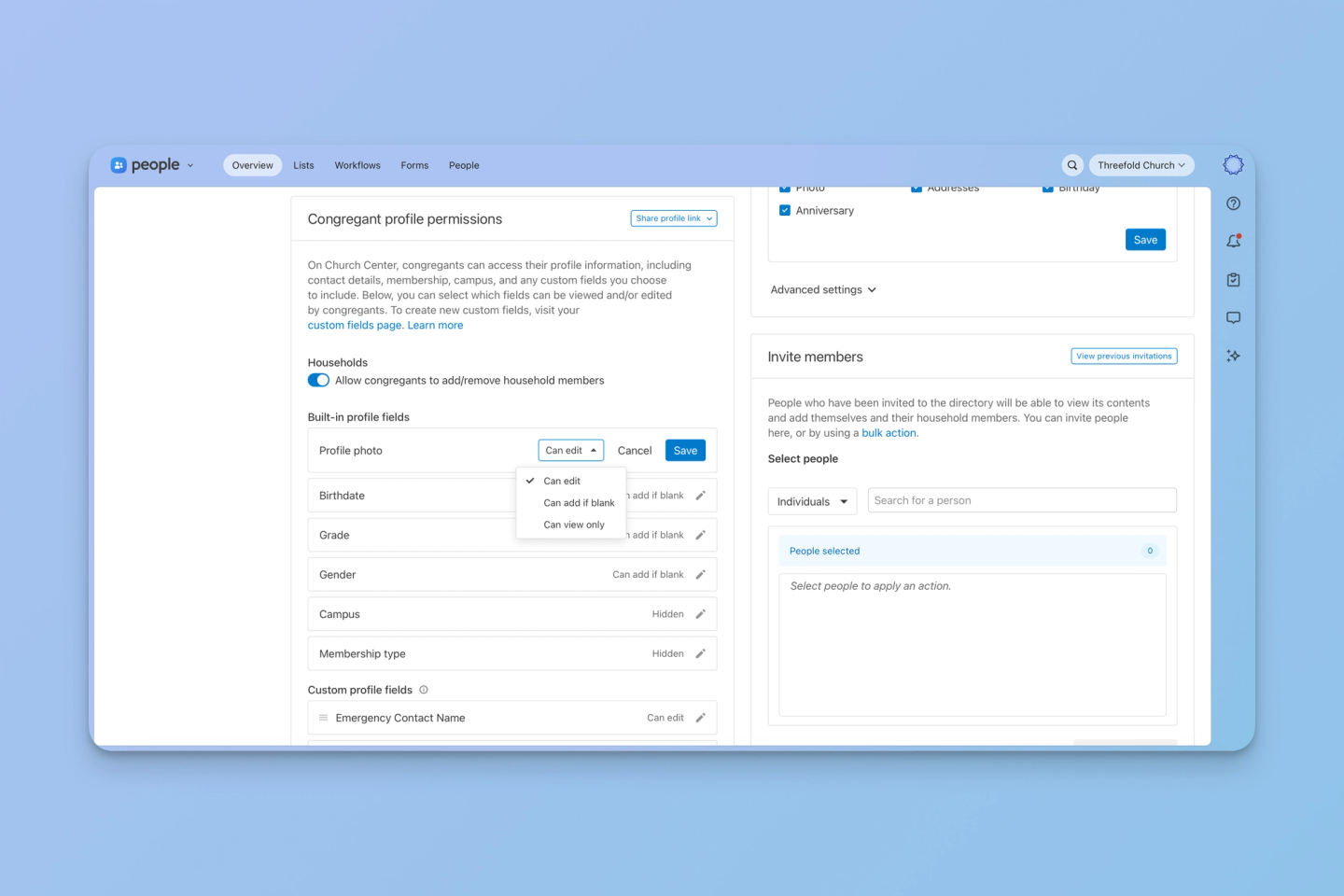
For each built-in and custom field, you decide how much control congregants have. Here's what each level does and when it makes sense to use it:
- Can edit: Congregants can change the field anytime. Use this for information that changes over time, such as profile photo, occupation, T-shirt size, or newsletter preferences. If your church has multiple campuses, this is also a good fit for campus so people can tell you which one they consider home.
- Can add if blank: Congregants can only edit the field if it's empty. Once the field has a value, it becomes view only. This works well for dates and details that shouldn't change once they're recorded, like birthdate, baptism or salvation date, and graduation year.
- Can view only: Congregants can see the field but not change it. Use this for information members may want to see but shouldn't update on their own. This is best used for sensitive fields like training completion dates, signed waivers, or membership start date. People can see their record and even let you know if they spot a mistake, but editing power stays in your hands. These fields show a lock icon, and congregants are instructed to reach out to a church administrator to make changes.
- Hidden: The field doesn't appear on the congregant's profile at all. Use this for information you track internally, like membership type. It's also available for campus, which a single-campus church has no reason to show.
Some fields don't currently offer the ability to customize permissions:
- Names are always locked. Congregants can't edit their name or their household members' names in Church Center. If a name needs to change, they'll need to reach out to the church directly.
- A few fields can't be locked. Contact information, including email address, phone number, and address, is always editable with no way to change the setting. The same goes for a couple of other fields, such as medical notes and marital status.
How to Set Up Congregant Profile Permissions in Planning Center People
Organization administrators and People managers can set up these fields and change the settings. Here's how:
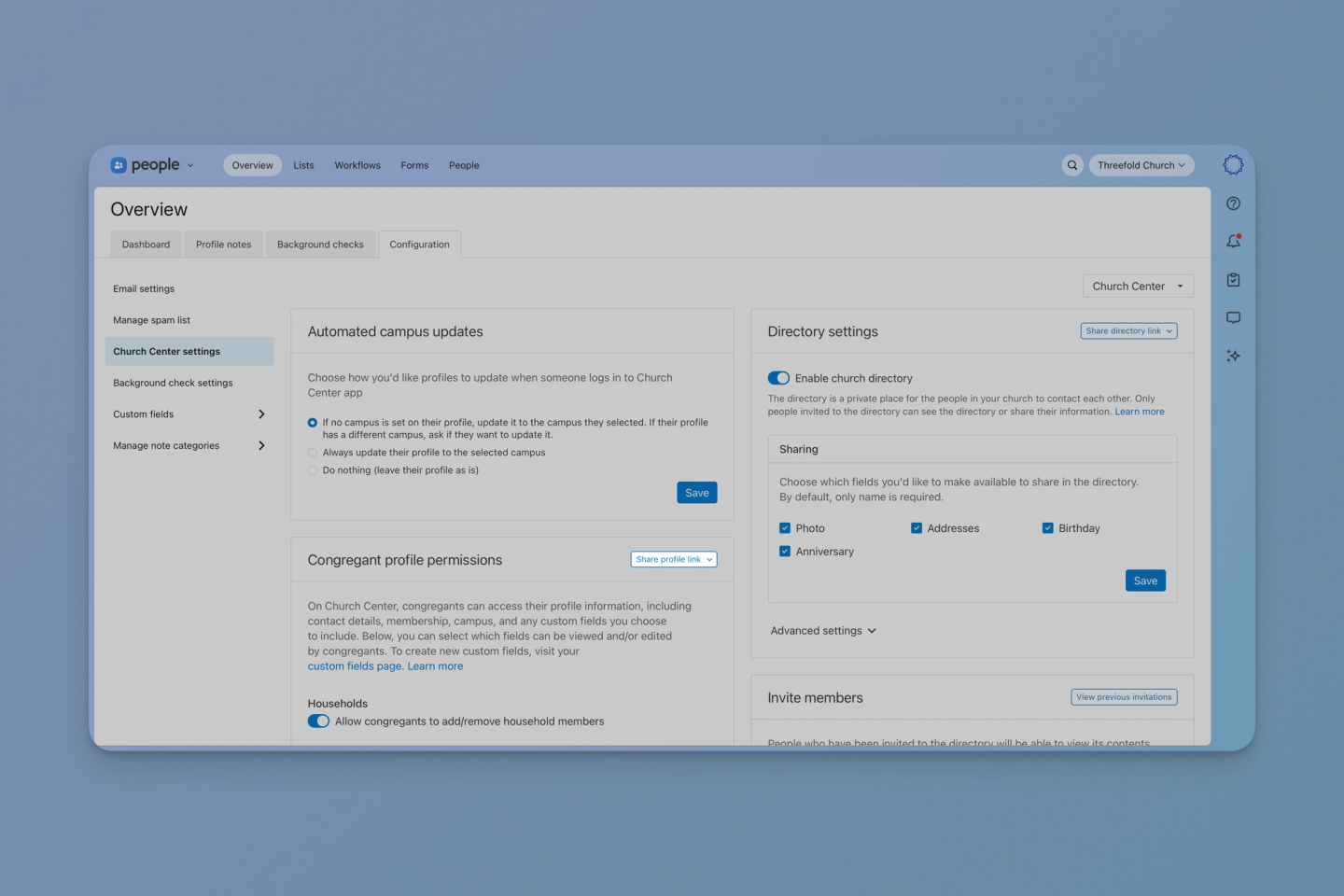
- In Planning Center People, select the Overview page from the top navigation.
- Select the Configuration tab, then choose Church Center settings from the left sidebar.
- Scroll to the Congregant profile permissions section.
- Under Households, turn on Allow congregants to add/remove household members if you want families to manage who is in their household.
- For built-in profile fields, select the edit icon next to each field and choose Can edit, Can add if blank, or Can view only. Some fields, such as campus, can also be Hidden.
- For custom fields, select Add field, choose the custom tab and field to pull from, and set the same permission level. Select Add section header if you want to group custom fields into subsections with a short description.
Take a few minutes to think through each field before you turn it on. You can include up to 20 custom fields, so prioritize the fields that are most valuable for congregants to update or see on their profile.
How to Share the Profile Link With Your Congregation
Once you set permissions, invite your congregation to review and update their profiles. Grab the shareable link by going back to Church Center settings in People and selecting Share profile link to copy the URL or download the QR code.
Congregants can use the link to update their information in the Church Center app or a web browser. Inside Church Center, they'll find everything by tapping their profile picture, then My information and settings, then Personal and household info.
Here are a few ways to spread the word:
- Send an email with the link and ask people to take a few minutes to make sure their information is current.
- Add the QR code to a pre-service slide.
- Encourage people to scan and update during a class, small group, or membership class.
- Include the link in your welcome emails so new families start with a complete profile.
Why Accurate Profiles Matter
Your workflows, lists, and emails are only as good as the member profiles behind them. When a phone number is wrong or a child is missing from a household, follow-ups get missed, and your team ends up working from outdated information.
When congregants update their own profiles and their family's, your team spends less time chasing updates and processing profile update forms. You stop sending messages to old email addresses and phone numbers, and incomplete profiles start to fill in.
Don't expect everyone to jump in the first time you ask. It may take a few rounds of promotion before participation picks up. Once it does, people tend to send small updates on their own as life changes.
Want Help Deciding Which Fields to Open Up?
Threefold Solutions helps churches get the most out of Planning Center, from initial setup to ongoing strategy. If you want to connect with other church admins and see how they handle profile permissions, join the free Threefold Community today. And for step-by-step video training on People and Church Center workflows, check out the Playbook here.